Web accessibility (a11y) isn't an optional extra — it's a legal requirement in many countries and an ethical responsibility for every developer. With React and Tailwind CSS, you can build accessible interfaces without sacrificing development speed or design. This article shows you how to comply with WCAG 2.2 in your Next.js project.
Why does accessibility matter?
Over 15% of the world's population lives with some form of disability. But accessibility doesn't only benefit people with permanent disabilities:
- Temporary disabilities: A broken arm, an eye infection.
- Situational disabilities: Using a phone one-handed, screen under direct sunlight.
- Slow connections: Users in rural areas or with limited data.
- SEO: Google crawlers are essentially "blind users" — semantic HTML helps them.
- Legal: The European Accessibility Act (EAA) came into full effect in June 2025.
Semantic HTML: the foundation
The first step to an accessible website is using the correct HTML element for each purpose. Screen readers and assistive technologies depend on HTML semantics.
Landmarks and structure
// app/[locale]/layout.tsx
export default function RootLayout({
  children,
}: {
  children: React.ReactNode;
}) {
  return (
    <html lang="en">
      <body>
        {/* Skip link — first DOM element */}
        <a
          href="#main-content"
          className="sr-only focus:not-sr-only focus:absolute focus:top-4 focus:left-4
                     focus:z-50 focus:rounded-lg focus:bg-primary-600 focus:px-4
                     focus:py-2 focus:text-white"
        >
          Skip to main content
        </a>

        <header role="banner">
          <nav aria-label="Main navigation">
            {/* Navbar */}
          </nav>
        </header>

        <main id="main-content" role="main">
          {children}
        </main>

        <footer role="contentinfo">
          {/* Footer */}
        </footer>
      </body>
    </html>
  );
}
Heading hierarchy
Headings must follow a logical hierarchy. Never skip levels (from h1 to h3 without h2):
// ✅ Correct: logical hierarchy
<main>
  <h1>Web Development Services</h1>

  <section aria-labelledby="frontend-heading">
    <h2 id="frontend-heading">Frontend</h2>

    <h3>React & Next.js</h3>
    <p>Modern interface development...</p>

    <h3>Accessibility</h3>
    <p>WCAG 2.2 compliance...</p>
  </section>

  <section aria-labelledby="backend-heading">
    <h2 id="backend-heading">Backend</h2>
    <p>APIs and microservices...</p>
  </section>
</main>

// ❌ Incorrect: skips from h1 to h3
<h1>Services</h1>
<h3>Frontend</h3> {/* Missing h2 */}
Accessible forms
Forms are one of the most critical elements for accessibility. Every field must have an associated label, clear error messages, and correct ARIA attributes.
"use client";

import { useForm } from "react-hook-form";
import { z } from "zod/v4";
import { zodResolver } from "@hookform/resolvers/zod";

const schema = z.object({
  name: z.string().min(2, "Name must be at least 2 characters"),
  email: z.email("Enter a valid email"),
  message: z.string().min(10, "Message must be at least 10 characters"),
});

type FormData = z.infer<typeof schema>;

export function ContactForm() {
  const {
    register,
    handleSubmit,
    formState: { errors, isSubmitting },
  } = useForm<FormData>({ resolver: zodResolver(schema) });

  return (
    <form
      onSubmit={handleSubmit(onSubmit)}
      noValidate
      aria-label="Contact form"
    >
      {/* Field with label, description, and error */}
      <div>
        <label htmlFor="contact-name">
          Name <span aria-hidden="true">*</span>
        </label>
        <input
          id="contact-name"
          type="text"
          {...register("name")}
          aria-required="true"
          aria-invalid={!!errors.name}
          aria-describedby={
            errors.name ? "name-error" : "name-help"
          }
          autoComplete="name"
        />
        <p id="name-help" className="text-sm text-gray-500">
          Your full name
        </p>
        {errors.name && (
          <p id="name-error" role="alert" className="text-sm text-red-600">
            {errors.name.message}
          </p>
        )}
      </div>

      {/* Email field */}
      <div>
        <label htmlFor="contact-email">
          Email <span aria-hidden="true">*</span>
        </label>
        <input
          id="contact-email"
          type="email"
          {...register("email")}
          aria-required="true"
          aria-invalid={!!errors.email}
          aria-describedby={errors.email ? "email-error" : undefined}
          autoComplete="email"
        />
        {errors.email && (
          <p id="email-error" role="alert" className="text-sm text-red-600">
            {errors.email.message}
          </p>
        )}
      </div>

      {/* Textarea */}
      <div>
        <label htmlFor="contact-message">
          Message <span aria-hidden="true">*</span>
        </label>
        <textarea
          id="contact-message"
          {...register("message")}
          rows={5}
          aria-required="true"
          aria-invalid={!!errors.message}
          aria-describedby={errors.message ? "message-error" : undefined}
        />
        {errors.message && (
          <p id="message-error" role="alert" className="text-sm text-red-600">
            {errors.message.message}
          </p>
        )}
      </div>

      <button
        type="submit"
        disabled={isSubmitting}
        aria-busy={isSubmitting}
      >
        {isSubmitting ? "Sending..." : "Send message"}
      </button>
    </form>
  );
}
Keyboard navigation
Everything a user can do with a mouse must be possible with a keyboard. This includes navigation, forms, modals, and interactive components.
Visible focus with Tailwind
// Tailwind includes focus-visible by default

// Usage in components:
<button
  className="rounded-lg bg-primary-600 px-6 py-3 text-white
             hover:bg-primary-700
             focus-visible:outline-none focus-visible:ring-2
             focus-visible:ring-primary-500 focus-visible:ring-offset-2"
>
  Contact
</button>

// For navigation links:
<a
  href="/services"
  className="text-gray-700 hover:text-primary-600
             focus-visible:outline-none focus-visible:ring-2
             focus-visible:ring-primary-500 focus-visible:rounded"
>
  Services
</a>
Focus trap in modals
When a modal is open, keyboard focus must be trapped inside it. With Headless UI or Radix UI, this comes built-in:
"use client";

import * as Dialog from "@radix-ui/react-dialog";

export function ContactModal() {
  return (
    <Dialog.Root>
      <Dialog.Trigger asChild>
        <button className="rounded-lg bg-primary-600 px-6 py-3 text-white">
          Open form
        </button>
      </Dialog.Trigger>

      <Dialog.Portal>
        <Dialog.Overlay className="fixed inset-0 bg-black/50" />
        <Dialog.Content
          className="fixed left-1/2 top-1/2 -translate-x-1/2 -translate-y-1/2
                     rounded-xl bg-white p-8 shadow-xl"
          aria-describedby="modal-description"
        >
          <Dialog.Title className="text-xl font-bold">
            Contact
          </Dialog.Title>
          <Dialog.Description id="modal-description">
            Fill out the form and we'll respond within 24 hours.
          </Dialog.Description>

          {/* Focus is automatically trapped here */}
          <ContactForm />

          <Dialog.Close asChild>
            <button
              className="absolute right-4 top-4"
              aria-label="Close modal"
            >
              ✕
            </button>
          </Dialog.Close>
        </Dialog.Content>
      </Dialog.Portal>
    </Dialog.Root>
  );
}
Common ARIA patterns
Live regions for dynamic content
When content changes dynamically (notifications, search results, status updates), use live regions so screen readers announce the changes:
"use client";

import { useState } from "react";

export function SearchResults() {
  const [results, setResults] = useState<string[]>([]);
  const [isSearching, setIsSearching] = useState(false);

  return (
    <div>
      <input
        type="search"
        aria-label="Search projects"
        onChange={handleSearch}
      />

      {/* Announces result count to screen reader */}
      <div aria-live="polite" aria-atomic="true" className="sr-only">
        {isSearching
          ? "Searching..."
          : `${results.length} results found`}
      </div>

      {/* Visible results */}
      <ul role="list">
        {results.map((result) => (
          <li key={result} role="listitem">{result}</li>
        ))}
      </ul>
    </div>
  );
}
Accessible tabs
"use client";

import { useState } from "react";

const tabs = [
  { id: "frontend", label: "Frontend" },
  { id: "backend", label: "Backend" },
  { id: "devops", label: "DevOps" },
];

export function SkillsTabs() {
  const [activeTab, setActiveTab] = useState("frontend");

  return (
    <div>
      <div role="tablist" aria-label="Skill categories">
        {tabs.map((tab) => (
          <button
            key={tab.id}
            role="tab"
            id={`tab-${tab.id}`}
            aria-selected={activeTab === tab.id}
            aria-controls={`panel-${tab.id}`}
            tabIndex={activeTab === tab.id ? 0 : -1}
            onClick={() => setActiveTab(tab.id)}
            onKeyDown={(e) => handleTabKeyDown(e, tab.id)}
            className={`px-4 py-2 ${
              activeTab === tab.id
                ? "border-b-2 border-primary-600 text-primary-600"
                : "text-gray-500"
            }`}
          >
            {tab.label}
          </button>
        ))}
      </div>

      {tabs.map((tab) => (
        <div
          key={tab.id}
          role="tabpanel"
          id={`panel-${tab.id}`}
          aria-labelledby={`tab-${tab.id}`}
          hidden={activeTab !== tab.id}
          tabIndex={0}
        >
          {/* Tab content */}
        </div>
      ))}
    </div>
  );
}
Accessibility utilities with Tailwind
Screen reader only text
// Visually hidden but accessible text
<span className="sr-only">Open navigation menu</span>

// Visible only on focus (for skip links)
<a href="#main" className="sr-only focus:not-sr-only">
  Skip to content
</a>
Respect prefers-reduced-motion
// Tailwind includes the motion-reduce modifier
<div
  className="transition-transform duration-300
             motion-reduce:transition-none motion-reduce:transform-none"
  data-aos="fade-up"
>
  Animated content
</div>

// In global CSS for AOS:
// styles/globals.css
@media (prefers-reduced-motion: reduce) {
  [data-aos] {
    transition: none !important;
    transform: none !important;
    opacity: 1 !important;
  }
}
Color contrast
WCAG 2.2 requires a minimum contrast ratio of 4.5:1 for normal text and 3:1 for large text. Verify your colors:
// ✅ Good contrast (primary-600 on white)
<p className="text-primary-600">Text with good contrast</p>

// ❌ Poor contrast (gray-300 on white)
<p className="text-gray-300">Nearly invisible text</p>

// ✅ Tailwind dark mode with good contrast
<p className="text-gray-900 dark:text-gray-100">
  Readable text in both modes
</p>
Accessibility testing
Automated tools
- axe DevTools: Chrome extension that automatically detects WCAG violations.
- Lighthouse: Accessibility audit built into Chrome DevTools.
- WAVE: Web tool that visually shows accessibility errors.
Essential manual testing
Automated tools only catch ~30% of accessibility issues. Manual testing is essential:
- Navigate with keyboard only: Tab, Shift+Tab, Enter, Escape, arrow keys. Can you reach everything?
- Enable a screen reader: VoiceOver (Mac), NVDA (Windows), Orca (Linux). Does the content make sense?
- Zoom to 200%: Does the layout break? Is content lost?
- Disable images: Are alt texts descriptive?
- High contrast mode: Are elements still distinguishable?
ESLint for accessibility
npm install --save-dev eslint-plugin-jsx-a11y// .eslintrc.json
{
"extends": [
"next/core-web-vitals",
"plugin:jsx-a11y/recommended"
]
}This plugin catches development-time errors like:
- Images without
altattribute - Labels not associated with inputs
- Click handlers without keyboard support
- Invalid ARIA attributes
- Heading levels that skip levels
WCAG 2.2 checklist for React developers
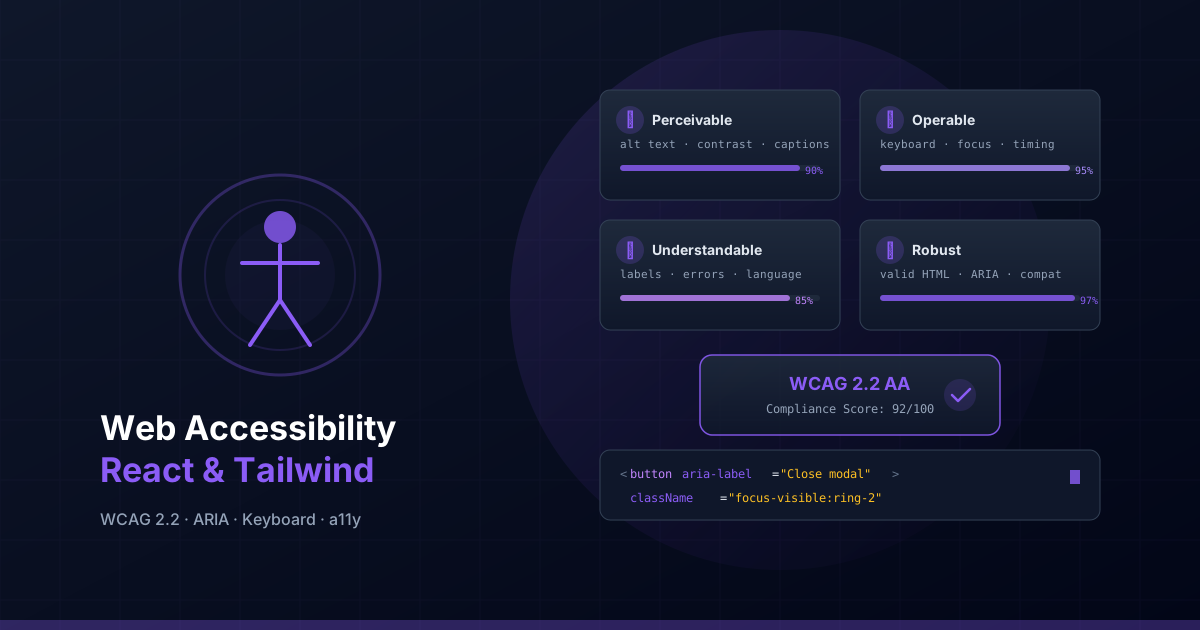
- Perceivable: Alt text on images, captions on videos, adequate color contrast.
- Operable: Everything keyboard-accessible, no focus traps, sufficient time to interact.
- Understandable: Document language defined, form labels, clear error messages.
- Robust: Valid HTML, correct ARIA attributes, compatible with assistive technologies.
Conclusion
Web accessibility isn't a feature you add at the end — it's a way of thinking about development from the start. With React, Tailwind CSS, and the tools we've covered, you can build interfaces that work for all users without compromising visual experience or development speed.
Start with the basics: semantic HTML, visible focus, form labels, and alt text. From there, add ARIA patterns, live regions, and manual testing. Every small improvement makes your site more inclusive.