Beyond Basic Utilities
Tailwind CSS is far more than a collection of utility classes for margin, padding, and color. Once you move beyond the basics, Tailwind becomes a powerful design system engine that can express complex UI patterns with remarkable conciseness. In a Next.js 16 project, combining Tailwind with React Server Components and the App Router unlocks a workflow where styles are co-located with logic, fully tree-shakeable, and require zero runtime CSS-in-JS overhead.
This guide explores advanced techniques that transform Tailwind from a utility framework into a complete styling architecture. We will cover custom theme configuration, CSS animations, utility functions, plugins, dark mode, component patterns, performance optimization, and responsive design strategies.
Before diving in, ensure your project is set up with Tailwind CSS 3.4+ and the necessary PostCSS configuration:
# Install Tailwind and its peer dependencies
npm install -D tailwindcss postcss autoprefixer

# Generate configuration files
npx tailwindcss init -p
Your tailwind.config.ts should include the correct content paths for Next.js:
import type { Config } from "tailwindcss";

const config: Config = {
  content: [
    "./app/**/*.{js,ts,jsx,tsx,mdx}",
    "./components/**/*.{js,ts,jsx,tsx,mdx}",
    "./content/**/*.{js,ts,jsx,tsx,mdx}",
  ],
  theme: {
    extend: {},
  },
  plugins: [],
};

export default config;
With this foundation in place, you are ready to explore the advanced capabilities that make Tailwind an indispensable tool for modern web development.
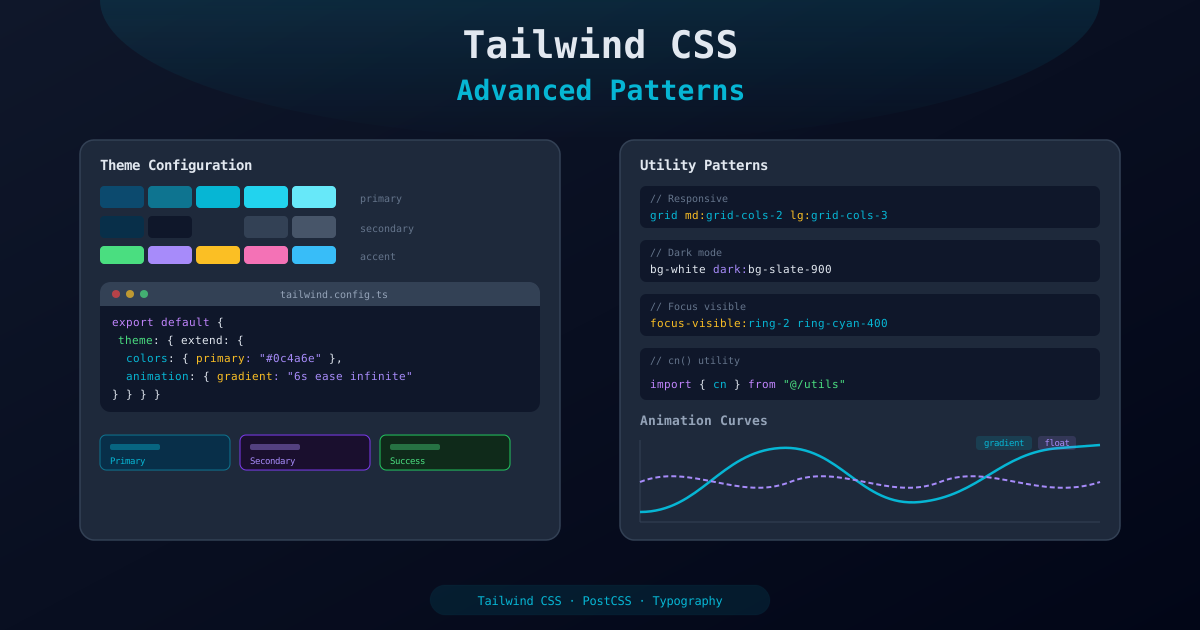
Configuring a Custom Theme
The theme.extend section of your Tailwind configuration is where you define your
brand identity. Rather than overriding Tailwind's defaults, extending the theme adds your custom
values alongside the built-in ones.
import type { Config } from "tailwindcss";

const config: Config = {
  content: [
    "./app/**/*.{js,ts,jsx,tsx,mdx}",
    "./components/**/*.{js,ts,jsx,tsx,mdx}",
  ],
  theme: {
    extend: {
      colors: {
        primary: {
          50: "#f0f9ff",
          100: "#e0f2fe",
          200: "#bae6fd",
          300: "#7dd3fc",
          400: "#38bdf8",
          500: "#0ea5e9",
          600: "#0284c7",
          700: "#0c4a6e",
          800: "#075985",
          900: "#0c4a6e",
          950: "#082f49",
        },
        secondary: {
          DEFAULT: "#082f49",
          light: "#0c4a6e",
          dark: "#041e32",
        },
        accent: {
          gold: "#f59e0b",
          emerald: "#10b981",
          rose: "#f43f5e",
        },
      },
      fontFamily: {
        sans: ["Inter", "system-ui", "-apple-system", "sans-serif"],
        display: ["Cal Sans", "Inter", "sans-serif"],
        mono: ["JetBrains Mono", "Fira Code", "monospace"],
      },
      spacing: {
        "18": "4.5rem",
        "88": "22rem",
        "128": "32rem",
      },
      borderRadius: {
        "4xl": "2rem",
        "5xl": "2.5rem",
      },
      boxShadow: {
        glow: "0 0 20px rgba(14, 165, 233, 0.3)",
        "glow-lg": "0 0 40px rgba(14, 165, 233, 0.4)",
        "inner-glow": "inset 0 0 20px rgba(14, 165, 233, 0.15)",
      },
      backgroundImage: {
        "gradient-radial": "radial-gradient(var(--tw-gradient-stops))",
        "gradient-conic":
          "conic-gradient(from 180deg at 50% 50%, var(--tw-gradient-stops))",
        "hero-pattern": "url('/images/hero-pattern.svg')",
      },
      maxWidth: {
        "8xl": "88rem",
        "9xl": "96rem",
      },
    },
  },
  plugins: [],
};

export default config;
With this configuration, you can use classes like bg-primary-700,
text-secondary-light, font-display, shadow-glow,
and rounded-4xl throughout your components. The color scale follows Tailwind's
convention of 50-950 shades, ensuring consistency with other utility colors.
For design tokens that need to be shared with JavaScript (e.g., chart colors or dynamic styles), you can import the resolved config:
import resolveConfig from "tailwindcss/resolveConfig";
import tailwindConfig from "@/tailwind.config";

const fullConfig = resolveConfig(tailwindConfig);
const primaryColor = fullConfig.theme.colors.primary[700]; // '#0c4a6e'
CSS Animations with Tailwind
Tailwind makes it straightforward to define custom CSS animations using the
keyframes and animation extensions in your config. This eliminates
the need for separate CSS files or animation libraries for most use cases.
// tailwind.config.ts: theme.extend section
{
  keyframes: {
    gradient: {
      "0%, 100%": { backgroundPosition: "0% 50%" },
      "50%": { backgroundPosition: "100% 50%" },
    },
    float: {
      "0%, 100%": { transform: "translateY(0)" },
      "50%": { transform: "translateY(-10px)" },
    },
    "fade-in-up": {
      "0%": {
        opacity: "0",
        transform: "translateY(20px)",
      },
      "100%": {
        opacity: "1",
        transform: "translateY(0)",
      },
    },
    "slide-in-right": {
      "0%": {
        opacity: "0",
        transform: "translateX(100px)",
      },
      "100%": {
        opacity: "1",
        transform: "translateX(0)",
      },
    },
    "pulse-glow": {
      "0%, 100%": {
        boxShadow: "0 0 5px rgba(14, 165, 233, 0.2)",
      },
      "50%": {
        boxShadow: "0 0 25px rgba(14, 165, 233, 0.6)",
      },
    },
    "spin-slow": {
      "0%": { transform: "rotate(0deg)" },
      "100%": { transform: "rotate(360deg)" },
    },
    "bounce-subtle": {
      "0%, 100%": {
        transform: "translateY(-3%)",
        animationTimingFunction: "cubic-bezier(0.8, 0, 1, 1)",
      },
      "50%": {
        transform: "translateY(0)",
        animationTimingFunction: "cubic-bezier(0, 0, 0.2, 1)",
      },
    },
  },
  animation: {
    gradient: "gradient 6s ease infinite",
    float: "float 5s ease-in-out infinite",
    "fade-in-up": "fade-in-up 0.6s ease-out forwards",
    "slide-in-right": "slide-in-right 0.5s ease-out forwards",
    "pulse-glow": "pulse-glow 2s ease-in-out infinite",
    "spin-slow": "spin-slow 8s linear infinite",
    "bounce-subtle": "bounce-subtle 1s infinite",
  },
}
Use these animations directly in your JSX with the animate-* classes:
export function FloatingLogo() {
  return (
    <div className="animate-float">
      <img src="/logo.svg" alt="Logo" className="size-16" />
    </div>
  );
}

export function FadeInSection({ children }: { children: React.ReactNode }) {
  return (
    <section className="animate-fade-in-up opacity-0">
      {children}
    </section>
  );
}

export function GradientBackground() {
  return (
    <div className="animate-gradient bg-gradient-to-r from-primary-600 via-accent-emerald to-primary-400 bg-[length:200%_200%]">
      <h1 className="text-white text-5xl font-bold">Dynamic Gradient</h1>
    </div>
  );
}
Always respect the user's motion preferences by combining animations with the
motion-safe and motion-reduce variants:
<div className="motion-safe:animate-float motion-reduce:animate-none">
  {/* Content that floats only when the user has not requested reduced motion */}
</div>
The cn() Utility with clsx
When building components with Tailwind, you frequently need to conditionally apply classes
based on props, state, or variants. The cn() utility function combines
clsx for conditional class merging with tailwind-merge to
intelligently resolve conflicting Tailwind classes.
# Install the dependencies
npm install clsx tailwind-merge// utils/classNames.ts
import { type ClassValue, clsx } from "clsx";
import { twMerge } from "tailwind-merge";
export function cn(...inputs: ClassValue[]): string {
return twMerge(clsx(inputs));
}
The power of cn() is that it intelligently handles class conflicts. Without
tailwind-merge, applying both p-4 and p-2 would result
in both classes being present, with unpredictable behavior. With cn(), the last
value wins:
import { cn } from "@/utils/classNames";

// Without tailwind-merge: "p-4 p-2" (both present, unpredictable)
// With cn(): "p-2" (last value wins, as expected)
cn("p-4", "p-2"); // => "p-2"

// Conditional classes
cn("base-class", isActive && "bg-primary-700", isDisabled && "opacity-50");

// Merging with overrides from parent
cn(
  "rounded-lg bg-white px-4 py-2 text-sm",
  variant === "primary" && "bg-primary-700 text-white",
  variant === "danger" && "bg-red-600 text-white",
  className // Allow parent component to override styles
);
Here is a practical example of a Button component using cn():
interface ButtonProps extends React.ButtonHTMLAttributes<HTMLButtonElement> {
  variant?: "primary" | "secondary" | "ghost";
  size?: "sm" | "md" | "lg";
}

export function Button({
  variant = "primary",
  size = "md",
  className,
  children,
  ...props
}: ButtonProps) {
  return (
    <button
      className={cn(
        "inline-flex items-center justify-center rounded-lg font-medium transition-colors",
        "focus-visible:outline-none focus-visible:ring-2 focus-visible:ring-primary-500",
        "disabled:pointer-events-none disabled:opacity-50",
        {
          "bg-primary-700 text-white hover:bg-primary-800": variant === "primary",
          "bg-secondary text-white hover:bg-secondary-light": variant === "secondary",
          "bg-transparent hover:bg-gray-100 dark:hover:bg-gray-800": variant === "ghost",
        },
        {
          "h-8 px-3 text-sm": size === "sm",
          "h-10 px-4 text-base": size === "md",
          "h-12 px-6 text-lg": size === "lg",
        },
        className
      )}
      {...props}
    >
      {children}
    </button>
  );
}
Tailwind Plugins
Tailwind's plugin system extends the framework with additional utilities, components, and variants. Several official plugins are essential for content-heavy and form-heavy applications.
# Install official plugins
npm install -D @tailwindcss/typography @tailwindcss/line-clamp @tailwindcss/forms @tailwindcss/container-queries// tailwind.config.ts
import type { Config } from "tailwindcss";
import typography from "@tailwindcss/typography";
import lineClamp from "@tailwindcss/line-clamp";
import forms from "@tailwindcss/forms";
import containerQueries from "@tailwindcss/container-queries";
const config: Config = {
// ...content and theme
plugins: [
typography,
lineClamp,
forms({ strategy: "class" }),
containerQueries,
],
};
export default config;Typography Plugin
The @tailwindcss/typography plugin provides the prose class, which
applies beautiful typographic defaults to HTML content. This is essential for rendering blog
posts, markdown content, or any long-form text.
export function BlogPost({ content }: { content: string }) {
  return (
    <article
      className="prose prose-lg prose-zinc max-w-none
        prose-headings:font-display prose-headings:text-primary-900
        prose-a:text-primary-600 prose-a:no-underline hover:prose-a:underline
        prose-code:rounded prose-code:bg-gray-100 prose-code:px-1 prose-code:py-0.5
        prose-pre:bg-gray-900 prose-pre:text-gray-100
        prose-img:rounded-xl prose-img:shadow-lg"
      dangerouslySetInnerHTML={{ __html: content }}
    />
  );
}
The prose modifiers let you customize every element within the typography scope.
You can target headings, links, code blocks, images, blockquotes, and more with the
prose-*: prefix.
Line Clamp
The line-clamp-* utilities truncate text after a specified number of lines with
an ellipsis. This is invaluable for card previews, descriptions, and any place where content
length is variable:
export function ProjectCard({
  title,
  description,
}: {
  title: string;
  description: string;
}) {
  return (
    <div className="rounded-xl bg-white p-6 shadow-md">
      <h3 className="text-lg font-semibold line-clamp-1">{title}</h3>
      <p className="mt-2 text-gray-600 line-clamp-3">{description}</p>
    </div>
  );
}
Forms Plugin
The @tailwindcss/forms plugin provides a basic reset for form elements that
makes them easy to override with utilities. Using the class strategy means styles
are only applied when you explicitly add the form classes:
<input
  type="email"
  className="form-input rounded-lg border-gray-300 px-4 py-2
    focus:border-primary-500 focus:ring-primary-500
    dark:bg-gray-800 dark:border-gray-600 dark:text-white"
  placeholder="you@example.com"
/>
Creating a Custom Plugin
You can create your own plugins to add reusable utilities that are not included in Tailwind by default:
// tailwind.config.ts
import plugin from "tailwindcss/plugin";

const config: Config = {
  // ...
  plugins: [
    plugin(function ({ addUtilities }) {
      addUtilities({
        ".text-balance": {
          "text-wrap": "balance",
        },
        ".scrollbar-hide": {
          "-ms-overflow-style": "none",
          "scrollbar-width": "none",
          "&::-webkit-scrollbar": {
            display: "none",
          },
        },
      });
    }),
  ],
};
Dark Mode with next-themes
Tailwind CSS has built-in support for dark mode via the dark: variant. When
combined with next-themes, you get a complete dark mode solution with system
preference detection, persistence, and flash-free theme switching.
npm install next-themes// tailwind.config.ts
const config: Config = {
darkMode: "class", // Use class strategy for next-themes compatibility
// ... rest of config
};// app/[locale]/providers.tsx
"use client";
import { ThemeProvider } from "next-themes";
export function Providers({ children }: { children: React.ReactNode }) {
return (
<ThemeProvider attribute="class" defaultTheme="system" enableSystem>
{children}
</ThemeProvider>
);
}// components/common/ThemeToggle.tsx
"use client";
import { useTheme } from "next-themes";
import { useEffect, useState } from "react";
import { IconSun, IconMoon } from "@tabler/icons-react";
export function ThemeToggle() {
const { theme, setTheme } = useTheme();
const [mounted, setMounted] = useState(false);
useEffect(() => setMounted(true), []);
if (!mounted) return null;
return (
<button
onClick={() => setTheme(theme === "dark" ? "light" : "dark")}
className="rounded-lg p-2 hover:bg-gray-100 dark:hover:bg-gray-800
focus-visible:outline-none focus-visible:ring-2 focus-visible:ring-primary-500"
aria-label={theme === "dark" ? "Switch to light mode" : "Switch to dark mode"}
>
{theme === "dark" ? (
<IconSun className="size-5 text-yellow-400" />
) : (
<IconMoon className="size-5 text-gray-700" />
)}
</button>
);
}
The mounted check prevents a hydration mismatch. On the server, we do not know
the user's theme preference, so we render nothing until the client has mounted and the theme
is resolved.
Apply dark mode styles throughout your components using the dark: variant:
<div className="bg-white text-gray-900 dark:bg-gray-900 dark:text-gray-100">
  <h2 className="text-primary-700 dark:text-primary-300">Title</h2>
  <p className="text-gray-600 dark:text-gray-400">Description</p>
  <div className="border border-gray-200 dark:border-gray-700 rounded-xl p-4">
    <span className="shadow-md dark:shadow-gray-900/50">Card content</span>
  </div>
</div>
For consistent dark mode colors across your application, define semantic color variables in your global CSS that automatically adapt to the active theme:
/* styles/globals.css */
@layer base {
  :root {
    --background: 255 255 255;
    --foreground: 17 24 39;
    --card: 249 250 251;
    --border: 229 231 235;
  }

  .dark {
    --background: 17 24 39;
    --foreground: 243 244 246;
    --card: 31 41 55;
    --border: 55 65 81;
  }
}
Reusable Component Patterns
As your component library grows, you need a systematic way to manage variants, sizes, and
states. The class-variance-authority (cva) library provides a type-safe API
for defining component variants with Tailwind classes.
npm install class-variance-authority// components/ui/Badge.tsx
import { cva, type VariantProps } from "class-variance-authority";
import { cn } from "@/utils/classNames";
const badgeVariants = cva(
"inline-flex items-center rounded-full font-medium transition-colors",
{
variants: {
variant: {
default:
"bg-primary-100 text-primary-800 dark:bg-primary-900 dark:text-primary-200",
success:
"bg-green-100 text-green-800 dark:bg-green-900 dark:text-green-200",
warning:
"bg-yellow-100 text-yellow-800 dark:bg-yellow-900 dark:text-yellow-200",
danger:
"bg-red-100 text-red-800 dark:bg-red-900 dark:text-red-200",
outline: "border border-current bg-transparent",
},
size: {
sm: "px-2 py-0.5 text-xs",
md: "px-2.5 py-1 text-sm",
lg: "px-3 py-1.5 text-base",
},
},
defaultVariants: {
variant: "default",
size: "md",
},
}
);
interface BadgeProps
extends React.HTMLAttributes<HTMLSpanElement>,
VariantProps<typeof badgeVariants> {}
export function Badge({ variant, size, className, ...props }: BadgeProps) {
return (
<span
className={cn(badgeVariants({ variant, size }), className)}
{...props}
/>
);
}
The cva() function takes a base set of classes and a variants object. Each variant
defines a set of named options with their corresponding Tailwind classes. The function returns
a callable that generates the correct class string based on the provided props.
Here is a more complex example with compound variants for a Card component:
const cardVariants = cva(
  "rounded-xl border transition-all duration-200",
  {
    variants: {
      variant: {
        default:
          "bg-white border-gray-200 dark:bg-gray-800 dark:border-gray-700",
        elevated:
          "bg-white border-transparent shadow-lg dark:bg-gray-800",
        outlined:
          "bg-transparent border-gray-300 dark:border-gray-600",
      },
      interactive: {
        true: "cursor-pointer",
        false: "",
      },
      padding: {
        none: "p-0",
        sm: "p-4",
        md: "p-6",
        lg: "p-8",
      },
    },
    compoundVariants: [
      {
        variant: "default",
        interactive: true,
        className: "hover:border-primary-300 hover:shadow-md",
      },
      {
        variant: "elevated",
        interactive: true,
        className: "hover:shadow-xl hover:-translate-y-1",
      },
      {
        variant: "outlined",
        interactive: true,
        className: "hover:border-primary-400 hover:bg-gray-50 dark:hover:bg-gray-750",
      },
    ],
    defaultVariants: {
      variant: "default",
      interactive: false,
      padding: "md",
    },
  }
);
Compound variants let you apply styles only when multiple variant conditions are true simultaneously. This is powerful for expressing complex design decisions without nested conditional logic in your components.
Performance: Purge and Optimization
Tailwind CSS generates a massive number of utility classes during development, but in production it only includes the classes you actually use. This tree-shaking process is critical for keeping your CSS bundle small and your pages loading fast.
The content array in your Tailwind config tells the engine which files to scan
for class names. If a class is not found in any of these files, it will not appear in the
production CSS output.
// tailwind.config.ts
const config: Config = {
  content: [
    "./app/**/*.{js,ts,jsx,tsx,mdx}",
    "./components/**/*.{js,ts,jsx,tsx,mdx}",
    "./content/**/*.{js,ts,jsx,tsx,mdx}",
    // Include any other directories that contain Tailwind classes
  ],
  // ...
};
Common Pitfalls
Dynamically constructing class names will break purging because Tailwind scans files as plain text and cannot execute JavaScript:
// BAD: Tailwind cannot detect these dynamically constructed classes
const color = "red";
// bg-red-500 will be purged because Tailwind never sees the full string!
const className = `bg-${color}-500`;

// GOOD: Use complete class names in a lookup object
const colorClasses: Record<string, string> = {
  red: "bg-red-500",
  blue: "bg-blue-500",
  green: "bg-green-500",
};
const className = colorClasses[color]; // Tailwind finds "bg-red-500" in the source
If you need to use classes from external packages or dynamic sources, use the
safelist configuration to ensure they are always included:
// tailwind.config.ts
const config: Config = {
  safelist: [
    "bg-red-500",
    "bg-blue-500",
    { pattern: /^bg-(red|blue|green)-(100|500|900)$/ },
    { pattern: /^text-(sm|base|lg|xl)$/, variants: ["hover", "md"] },
  ],
  // ...
};
Measuring CSS Bundle Size
# Build your project and check the CSS output
npm run build

# Find all generated CSS files and their sizes
find .next -name "*.css" -exec du -h {} +

# Check gzipped size for a more realistic estimate
find .next -name "*.css" -exec gzip -c {} \; | wc -c
A well-optimized Tailwind CSS bundle for a typical Next.js site should be under 30KB gzipped.
If your bundle is significantly larger, audit your content paths and check for
dynamically generated class names that are forcing unnecessary classes into the safelist.
Additional performance tips:
- Avoid using
@applyextensively, since it duplicates CSS rather than reusing utility classes - Use CSS layers to control specificity without adding extra selectors
- Prefer Tailwind utilities over custom CSS whenever possible for better tree-shaking
- Keep your
safelistminimal, because every safelisted pattern increases bundle size
Advanced Responsive Design
Tailwind's mobile-first responsive design system uses breakpoint prefixes like sm:,
md:, lg:, and xl:. But for truly advanced responsive
layouts, you need container queries, fluid typography, and strategic use of CSS Grid.
Container Queries
Container queries let you style elements based on the size of their parent container rather
than the viewport. With the @tailwindcss/container-queries plugin, you get
utility classes for this powerful CSS feature:
export function ResponsiveCard({
  title,
  description,
  image,
}: {
  title: string;
  description: string;
  image: string;
}) {
  return (
    <div className="@container">
      <div className="flex flex-col @md:flex-row @lg:gap-8 gap-4 rounded-xl bg-white p-4 @md:p-6">
        <div className="@md:w-1/3">
          <img
            src={image}
            alt={title}
            className="rounded-lg w-full aspect-video @md:aspect-square object-cover"
          />
        </div>
        <div className="@md:w-2/3">
          <h3 className="text-lg @lg:text-xl font-semibold">{title}</h3>
          <p className="mt-2 text-gray-600 @md:text-base text-sm">
            {description}
          </p>
        </div>
      </div>
    </div>
  );
}
Container queries are ideal for reusable components that appear in different layout contexts. A card component that works in a full-width section and a narrow sidebar, without any prop changes or conditional logic.
Fluid Typography
Use clamp() with Tailwind's arbitrary value syntax for text that scales smoothly
between breakpoints without abrupt jumps:
<h1 className="text-[clamp(2rem,5vw,4rem)] font-bold leading-tight">
  Responsive Heading
</h1>

<p className="text-[clamp(1rem,2.5vw,1.25rem)] leading-relaxed">
  This paragraph scales fluidly between viewport sizes.
</p>
You can also define fluid sizes in your theme for reuse across the project:
// tailwind.config.ts
fontSize: {
  "fluid-sm": "clamp(0.875rem, 1.5vw, 1rem)",
  "fluid-base": "clamp(1rem, 2vw, 1.25rem)",
  "fluid-lg": "clamp(1.25rem, 3vw, 2rem)",
  "fluid-xl": "clamp(1.5rem, 4vw, 3rem)",
  "fluid-2xl": "clamp(2rem, 5vw, 4rem)",
}
Complex Grid Layouts
{/* Auto-responsive grid */}
<div className="grid grid-cols-1 md:grid-cols-2 lg:grid-cols-3 xl:grid-cols-4 gap-6">
  {projects.map((project) => (
    <ProjectCard key={project.id} {...project} />
  ))}
</div>

{/* CSS Grid with custom column definitions using arbitrary values */}
<div className="grid grid-cols-[1fr_2fr_1fr] grid-rows-[auto_1fr_auto] min-h-screen">
  <header className="col-span-full">Header</header>
  <aside className="hidden lg:block">Sidebar</aside>
  <main className="col-span-full lg:col-span-1">Content</main>
  <aside className="hidden xl:block">Right Panel</aside>
  <footer className="col-span-full">Footer</footer>
</div>

{/* Auto-fill grid that adapts to available space */}
<div className="grid grid-cols-[repeat(auto-fill,minmax(280px,1fr))] gap-6">
  {items.map((item) => (
    <Card key={item.id} {...item} />
  ))}
</div>
Best Practices
After working extensively with Tailwind CSS in production Next.js applications, these best practices have proven essential for maintainability, performance, and team collaboration.
1. Establish a Component Extraction Threshold
If you find yourself repeating the same combination of utility classes more than three times,
extract it into a React component. Do not use @apply in CSS files as a first
resort. Prefer React components, which are more composable and type-safe.
// AVOID: @apply in CSS (breaks co-location, harder to maintain)
// .btn-primary { @apply bg-primary-700 text-white rounded-lg px-4 py-2; }

// PREFER: React component (composable, type-safe, discoverable)
export function Button({ children, className, ...props }: ButtonProps) {
  return (
    <button
      className={cn(
        "bg-primary-700 text-white rounded-lg px-4 py-2",
        className
      )}
      {...props}
    >
      {children}
    </button>
  );
}
2. Use Consistent Spacing and Sizing
Stick to Tailwind's default spacing scale (4, 8, 12, 16, 20, 24...) and avoid arbitrary pixel values unless absolutely necessary. Consistency in spacing creates visual harmony and makes your UI feel polished and intentional.
3. Leverage the Group and Peer Modifiers
<div className="group rounded-xl border border-gray-200 p-6 transition-all hover:border-primary-300 hover:shadow-lg">
<h3 className="font-semibold group-hover:text-primary-700 transition-colors">
Card Title
</h3>
<p className="text-gray-600 group-hover:text-gray-800 transition-colors">
Description text that changes on parent hover.
</p>
<span className="opacity-0 group-hover:opacity-100 transition-opacity">
→
</span>
</div>
The group modifier lets child elements react to the parent's hover, focus, or
active state. The peer modifier does the same for sibling elements, which is
especially useful for form validation messages.
4. Organize Long Class Lists
When a class list grows beyond one line, organize classes into logical groups using the
cn() utility to break them across multiple lines with comments:
className={cn(
  // Layout
  "flex items-center justify-between",
  // Spacing
  "px-4 py-3 gap-2",
  // Typography
  "text-sm font-medium",
  // Colors and background
  "bg-white text-gray-900",
  // Border and effects
  "rounded-lg border border-gray-200 shadow-sm",
  // Interactive states
  "hover:bg-gray-50 focus-visible:ring-2 focus-visible:ring-primary-500",
  // Responsive overrides
  "md:px-6 md:py-4 md:text-base",
  // Dark mode
  "dark:bg-gray-800 dark:text-gray-100 dark:border-gray-700",
)}
5. Prioritize Accessibility
Always include focus-visible styles for keyboard navigation, ensure sufficient color contrast between text and backgrounds, and respect motion preferences:
// Focus-visible styles for keyboard navigation
"focus-visible:outline-none focus-visible:ring-2 focus-visible:ring-primary-500 focus-visible:ring-offset-2"

// Respect motion preferences
"motion-safe:transition-all motion-safe:duration-200 motion-reduce:transition-none"

// Screen-reader-only text for icons and visual elements
<span className="sr-only">Close navigation menu</span>
6. Type Your Theme Values
Create TypeScript types for your design tokens to catch errors at compile time rather than discovering them in the browser:
type ColorVariant = "primary" | "secondary" | "accent" | "danger" | "success";
type Size = "sm" | "md" | "lg" | "xl";

const colorMap: Record<ColorVariant, string> = {
  primary: "bg-primary-700 text-white",
  secondary: "bg-secondary text-white",
  accent: "bg-accent-gold text-gray-900",
  danger: "bg-red-600 text-white",
  success: "bg-green-600 text-white",
};
7. Use Tailwind's Intellisense Extension
Install the Tailwind CSS IntelliSense extension for VS Code. It provides autocomplete for Tailwind classes, shows color previews inline, highlights errors for invalid class names, and supports your custom theme values. This single extension dramatically improves the developer experience and reduces typos in class names.
8. Sort Classes Automatically
Use the prettier-plugin-tailwindcss plugin to maintain a consistent class order
across your entire codebase. This eliminates bikeshedding over class ordering in code reviews
and makes diffs cleaner:
npm install -D prettier-plugin-tailwindcss// .prettierrc
{
"plugins": ["prettier-plugin-tailwindcss"]
}By following these best practices and leveraging the advanced techniques covered in this guide, you can build a sophisticated, performant, and maintainable design system using Tailwind CSS in your Next.js 16 application. The combination of utility-first styling, component-driven architecture, and Tailwind's extensive configuration options provides a powerful foundation for any web project.