What Is Claude Code?
Claude Code is Anthropic's official command-line interface for Claude, their family of large language models. Unlike browser-based chat interfaces, Claude Code runs directly in your terminal and has full access to your local filesystem, shell, and development environment. This means it can read your codebase, run commands, edit files, and manage git workflows, all through natural language instructions.
Think of it as an AI pair programmer that lives in your terminal. It understands your project context, follows your coding conventions, and can perform multi-step tasks autonomously. Whether you are scaffolding a new feature, debugging a tricky issue, or refactoring legacy code, Claude Code dramatically accelerates your workflow.
Installation
Claude Code requires Node.js 18 or later. Install it globally via npm:
npm install -g @anthropic-ai/claude-codeVerify the installation by running:
claude --versionIf you prefer not to install globally, you can use npx to run it directly:
npx @anthropic-ai/claude-codeInitial Setup
On first launch, Claude Code will prompt you to authenticate. You have two primary options:
- Anthropic API key: Set the
ANTHROPIC_API_KEYenvironment variable or enter it when prompted. This gives you direct API access billed to your Anthropic account. - Claude Pro/Max subscription: Authenticate via your browser using your existing Anthropic subscription.
To set up your API key persistently, add it to your shell profile:
# ~/.bashrc or ~/.zshrc
export ANTHROPIC_API_KEY="sk-ant-your-key-here"
Then launch Claude Code in any project directory:
cd ~/projects/my-app
claude
Claude Code will automatically detect your project structure, read relevant configuration files, and establish context about your codebase.
Available Models: Opus, Sonnet, and Haiku
Claude Code gives you access to Anthropic's full model lineup. Choosing the right model for the task matters, because it affects both quality and cost.
- Claude Opus: The most capable model. Use it for complex architectural decisions, intricate refactoring across many files, and tasks requiring deep reasoning. It is slower and more expensive, but excels at nuanced multi-step work.
- Claude Sonnet: The balanced option and the default for most sessions. It handles the vast majority of coding tasks well: writing features, debugging, code review, and generating tests. This is your daily driver.
- Claude Haiku: The fastest and cheapest model. Ideal for quick questions, simple edits, boilerplate generation, and tasks where speed matters more than depth.
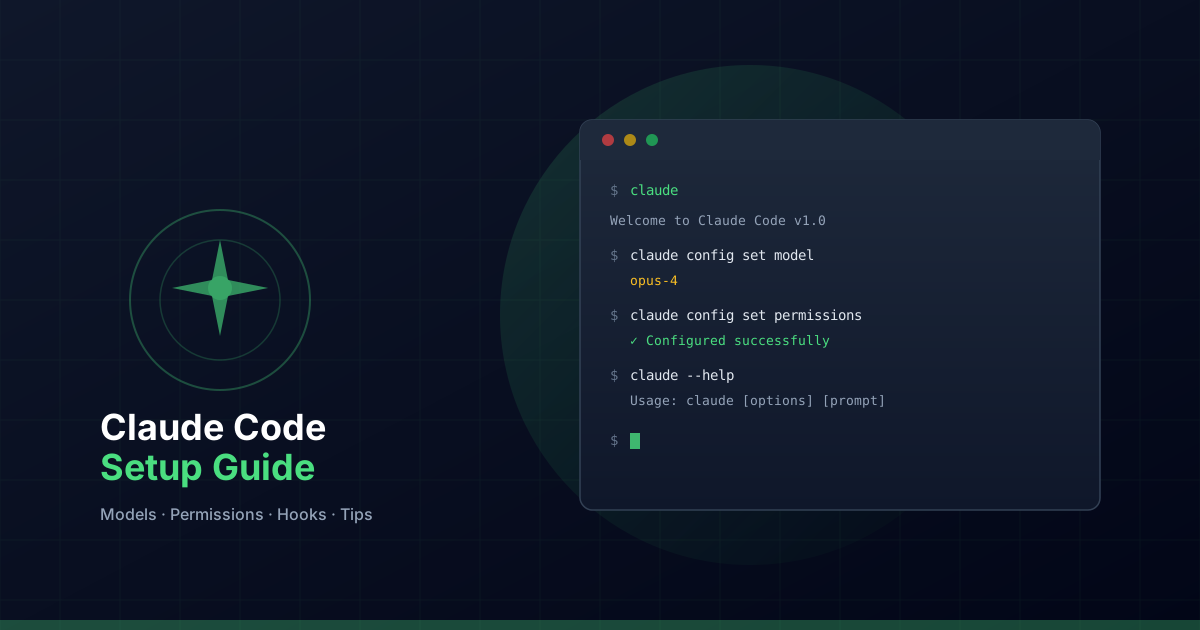
Switch models mid-session with the /model command:
/model opus    # Switch to Opus for a complex task
/model sonnet  # Back to Sonnet for regular work
/model haiku   # Quick question, use Haiku
Permission System
Claude Code includes a robust permission system that controls which tools and actions the agent can perform. This is critical for security: you want Claude to edit your source code but probably not delete your entire home directory.
Allowed Tools
Configure which tools Claude can use without asking for permission in your .claude/settings.json:
{
  "permissions": {
    "allowedTools": [
      "Read",
      "Edit",
      "Write",
      "Glob",
      "Grep",
      "Bash(npm run lint)",
      "Bash(npm run build)",
      "Bash(git status)",
      "Bash(git diff)"
    ]
  }
}
Deny Patterns
You can also deny specific patterns to prevent certain operations entirely:
{
  "permissions": {
    "deny": [
      "Bash(rm -rf *)",
      "Bash(git push --force)",
      "Write(.env*)"
    ]
  }
}
This layered approach gives you granular control. Tools not in the allowed list will prompt you for confirmation each time. Denied patterns are blocked entirely.
Hooks
Hooks let you run custom logic at specific points during a Claude Code session. They are defined in your .claude/settings.json:
{
  "hooks": {
    "PreToolUse": [
      {
        "matcher": "Bash",
        "hooks": [
          {
            "type": "command",
            "command": "echo 'About to run a bash command'"
          }
        ]
      }
    ],
    "PostToolUse": [
      {
        "matcher": "Write",
        "hooks": [
          {
            "type": "command",
            "command": "npx prettier --write $CLAUDE_FILE_PATH"
          }
        ]
      }
    ],
    "SessionStart": [
      {
        "hooks": [
          {
            "type": "command",
            "command": "echo 'Session started at $(date)' >> ~/.claude/session.log"
          }
        ]
      }
    ]
  }
}
Common use cases for hooks include:
- Auto-formatting files after Claude writes them
- Running linters after code edits
- Logging session activity
- Sending notifications when long tasks complete
The CLAUDE.md File
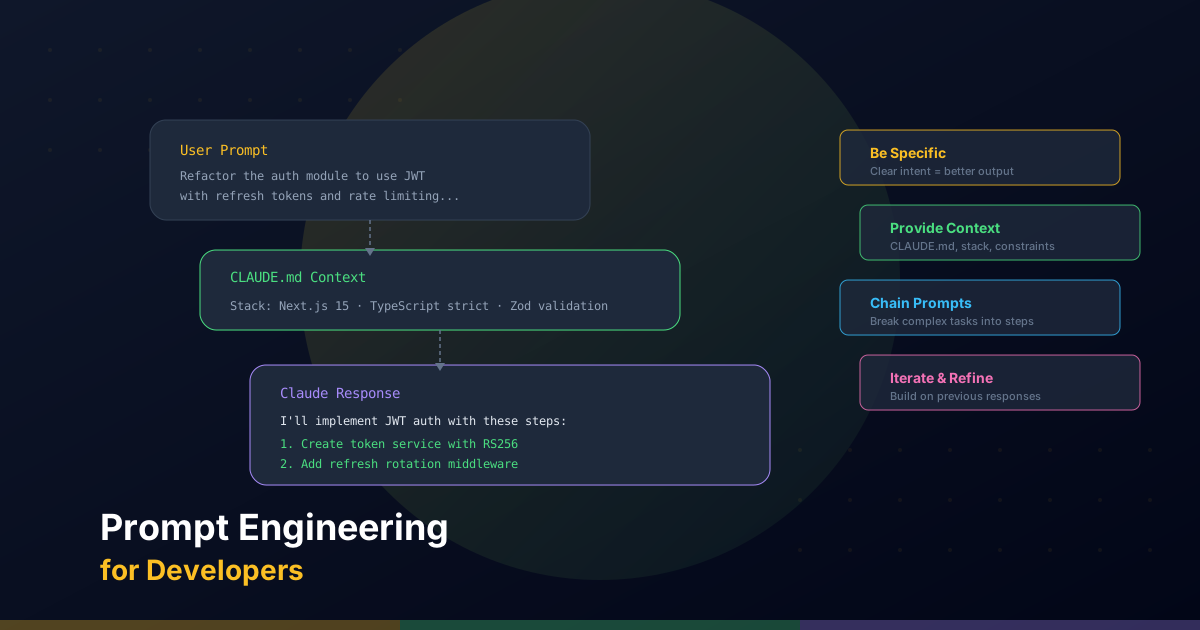
The CLAUDE.md file is arguably the most important configuration for Claude Code. Placed at the root of your project, it acts as a persistent system prompt that gives Claude deep context about your codebase.
A well-crafted CLAUDE.md should include:
- Project overview: What the project does, its tech stack, and architecture
- Quick reference commands: How to build, test, lint, and deploy
- Directory structure: Where key files live
- Coding conventions: Naming, patterns, and style rules
- Do and do-not rules: Explicit guardrails for the AI
- Environment variables: What exists and what each does (not the values)
Here is a minimal example:
# CLAUDE.md

## Project
E-commerce API built with Node.js, Express, and PostgreSQL.

## Commands
```bash
npm run dev       # Start dev server
npm run test      # Run Jest tests
npm run lint      # ESLint
```

## Conventions
- Use camelCase for variables, PascalCase for types
- All API routes go in /src/routes/
- Use Zod for request validation
- Write tests for all new endpoints

## Do NOT
- Modify database migrations without permission
- Add new dependencies without justification
- Commit .env files
Claude reads this file automatically at the start of every session, so keep it up to date as your project evolves.
Useful Shortcuts
Claude Code provides several slash commands for session management:
/help: Show all available commands and keyboard shortcuts/model: Switch between Opus, Sonnet, and Haiku/clear: Clear the conversation history and start fresh/compact: Compress the conversation context to free up token space while retaining key information/cost: Show the running cost of your current session/doctor: Diagnose issues with your Claude Code setup/init: Generate a CLAUDE.md file for your project
Keyboard shortcuts worth memorizing:
- Escape: Interrupt Claude's current response
- Ctrl+C: Cancel the current operation
- Shift+Tab: Toggle between plan mode and normal mode
Daily Use Tips
After months of using Claude Code as my primary development tool, here are the practices that have made the biggest difference:
- Start each session with context. Before asking Claude to do something, briefly describe what you are working on and what the goal is. A sentence or two of context goes a long way.
- Use plan mode for complex tasks. Press Shift+Tab to enter plan mode. Claude will outline its approach before executing, giving you a chance to course-correct before any changes are made.
- Review diffs, not just results. Always review what Claude changed. Use
git diffto see exactly what was modified before committing. - Leverage /compact for long sessions. If your conversation gets long, use
/compactto compress the context. This prevents context window issues and keeps Claude responsive. - Keep your CLAUDE.md current. As your project evolves, update your CLAUDE.md. The more accurate the context, the better Claude performs.
- Use specific, actionable instructions. Instead of "fix the login page," say "fix the login form validation: the email field accepts invalid formats and the error message does not display."
- Commit frequently. Make small, focused commits after each task. This gives you clean rollback points if Claude makes an unwanted change.
Claude Code is not just a tool. It is a workflow multiplier. The developers who get the most out of it are those who invest time in proper setup and develop clear communication patterns with the agent.