What Is MCP (Model Context Protocol)?
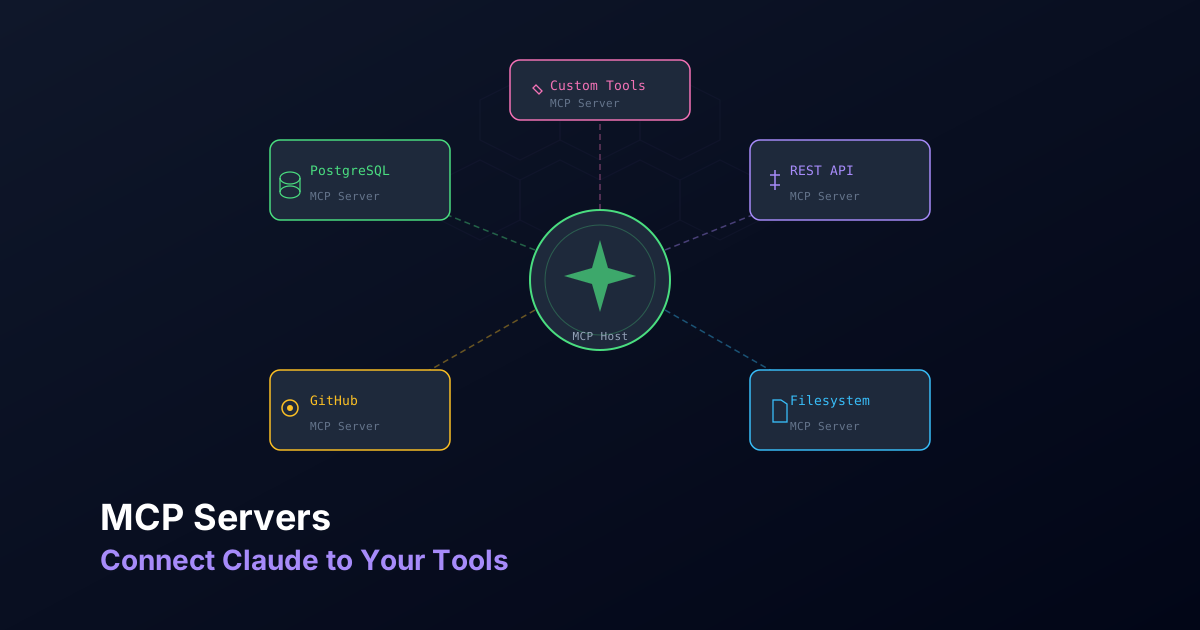
The Model Context Protocol (MCP) is an open standard developed by Anthropic that defines how AI models communicate with external tools, data sources, and services. Think of it as a universal adapter: instead of building custom integrations for every tool, MCP provides a single protocol that any AI client can use to connect to any compatible server.
Before MCP, connecting an AI assistant to your database, your GitHub repository, or your browser required custom glue code for each integration. MCP standardizes this into a clean client-server architecture where servers expose capabilities and clients consume them.
Architecture: Host, Client, Server
The MCP ecosystem has three core components:
- Host: The application the user interacts with (Claude Code, Claude Desktop, or any MCP-compatible client). The host manages one or more MCP clients.
- Client: Maintains a one-to-one connection with an MCP server. Each client session is isolated and handles the protocol communication.
- Server: A lightweight program that exposes specific capabilities (tools, resources, or prompts) via the MCP protocol. Servers can be local processes or remote services.
The communication flow works like this:
User -> Host (Claude Code) -> MCP Client -> MCP Server -> External Tool
                                                          (Database, API, etc.)
Servers can expose three types of capabilities:
- Tools: Executable functions the AI can call (e.g., query a database, create a GitHub issue)
- Resources: Data the AI can read (e.g., file contents, database schemas)
- Prompts: Reusable prompt templates for common workflows
Configuration in Claude Code
MCP servers are configured at three levels, each with different scope:
Project Configuration (.mcp.json)
Place a .mcp.json file at your project root for project-specific servers. This file should be committed to version control so your whole team shares the same MCP setup:
{
  "mcpServers": {
    "postgres": {
      "command": "npx",
      "args": [
        "-y",
        "@modelcontextprotocol/server-postgres",
        "postgresql://localhost:5432/myapp_dev"
      ]
    },
    "github": {
      "command": "npx",
      "args": ["-y", "@modelcontextprotocol/server-github"],
      "env": {
        "GITHUB_PERSONAL_ACCESS_TOKEN": "${GITHUB_TOKEN}"
      }
    }
  }
}
User Configuration (~/.claude/settings.json)
For servers you want available across all projects, configure them in your user settings:
{
  "mcpServers": {
    "brave-search": {
      "command": "npx",
      "args": ["-y", "@modelcontextprotocol/server-brave-search"],
      "env": {
        "BRAVE_API_KEY": "${BRAVE_API_KEY}"
      }
    }
  }
}
Popular MCP Servers
The MCP ecosystem has grown rapidly. Here are the servers most useful for developers:
Filesystem Server
Provides controlled access to the local filesystem with configurable read/write permissions and directory restrictions:
{
  "filesystem": {
    "command": "npx",
    "args": [
      "-y",
      "@modelcontextprotocol/server-filesystem",
      "/home/user/projects",
      "/home/user/documents"
    ]
  }
}
PostgreSQL Server
Connects Claude directly to your PostgreSQL database. It can inspect schemas, run queries, and analyze data:
{
  "postgres": {
    "command": "npx",
    "args": [
      "-y",
      "@modelcontextprotocol/server-postgres",
      "postgresql://user:password@localhost:5432/mydb"
    ]
  }
}
GitHub Server
Manages repositories, pull requests, issues, and code review workflows directly through Claude:
{
  "github": {
    "command": "npx",
    "args": ["-y", "@modelcontextprotocol/server-github"],
    "env": {
      "GITHUB_PERSONAL_ACCESS_TOKEN": "ghp_your_token_here"
    }
  }
}
Puppeteer Server
Allows Claude to control a headless browser, useful for testing, scraping, and visual verification:
{
  "puppeteer": {
    "command": "npx",
    "args": ["-y", "@modelcontextprotocol/server-puppeteer"]
  }
}
Brave Search Server
Gives Claude access to web search results, enabling it to look up documentation, find solutions, and research APIs:
{
  "brave-search": {
    "command": "npx",
    "args": ["-y", "@modelcontextprotocol/server-brave-search"],
    "env": {
      "BRAVE_API_KEY": "your_brave_api_key"
    }
  }
}
Practical Example: PostgreSQL MCP
Let us walk through setting up the PostgreSQL MCP server from scratch and using it in a real workflow.
First, ensure your database is running and accessible:
# Verify your database connection
psql postgresql://localhost:5432/myapp_dev -c "SELECT 1;"
Add the server to your project's .mcp.json:
{
  "mcpServers": {
    "postgres": {
      "command": "npx",
      "args": [
        "-y",
        "@modelcontextprotocol/server-postgres",
        "postgresql://localhost:5432/myapp_dev"
      ]
    }
  }
}
Restart Claude Code, and the MCP server will connect automatically. Now you can ask Claude things like:
- "Show me the schema of the users table"
- "Find all orders placed in the last 7 days with their associated user emails"
- "Write a migration to add a `status` column to the payments table"
- "Analyze the query performance of our most expensive queries"
Claude will use the MCP tools to inspect the schema, run read-only queries, and provide informed answers based on your actual data structure.
Example: GitHub MCP for PR and Issue Management
The GitHub MCP server is a game-changer for code review workflows. After configuring it with a personal access token, you can interact with your repositories directly:
# Generate a token at https://github.com/settings/tokens
# Required scopes: repo, read:org

# Set the token as an environment variable
export GITHUB_TOKEN="ghp_your_personal_access_token"
With the GitHub MCP active, you can ask Claude to:
- "List all open PRs in the frontend repo that need review"
- "Create an issue for the login bug we just discussed"
- "Review PR #42 and leave comments on any potential issues"
- "Check if there are any failing CI checks on the main branch"
This eliminates context switching between your terminal and the GitHub web interface.
Create Your Own Basic MCP Server
Building a custom MCP server is straightforward with the official TypeScript SDK. Here is a minimal example that exposes a tool to check the health of your API:
import { McpServer } from "@modelcontextprotocol/sdk/server/mcp.js";
import { StdioServerTransport } from "@modelcontextprotocol/sdk/server/stdio.js";
import { z } from "zod";

const server = new McpServer({
  name: "api-health",
  version: "1.0.0",
});

server.tool(
  "check-health",
  "Check the health status of an API endpoint",
  {
    url: z.string().url().describe("The URL of the health endpoint"),
    timeout: z
      .number()
      .optional()
      .default(5000)
      .describe("Request timeout in ms"),
  },
  async ({ url, timeout }) => {
    try {
      const controller = new AbortController();
      const timeoutId = setTimeout(() => controller.abort(), timeout);

      const start = Date.now();
      const response = await fetch(url, { signal: controller.signal });
      const elapsed = Date.now() - start;
      clearTimeout(timeoutId);

      const body = await response.text();

      return {
        content: [
          {
            type: "text",
            text: JSON.stringify(
              {
                status: response.ok ? "healthy" : "unhealthy",
                statusCode: response.status,
                responseTime: `${elapsed}ms`,
                body: body.slice(0, 500),
              },
              null,
              2
            ),
          },
        ],
      };
    } catch (error) {
      return {
        content: [
          {
            type: "text",
            text: `Health check failed: ${error instanceof Error ? error.message : "Unknown error"}`,
          },
        ],
        isError: true,
      };
    }
  }
);

const transport = new StdioServerTransport();
await server.connect(transport);
Save this as health-server.ts, compile it, and register it in your MCP configuration:
{
  "mcpServers": {
    "api-health": {
      "command": "node",
      "args": ["./tools/health-server.js"]
    }
  }
}
Security and Best Practices
MCP servers have real access to real systems. Treat their configuration with the same care you would give to any privileged credential:
- Use environment variables for secrets. Never hardcode API keys or database credentials in
.mcp.json. Use the${ENV_VAR}syntax to reference environment variables. - Restrict database access. Connect to databases with read-only users when possible. Create a dedicated database user with minimal permissions for your MCP server.
- Scope GitHub tokens. Generate personal access tokens with only the scopes your workflow requires. Avoid tokens with admin or delete permissions.
- Review server source code. Before installing a community MCP server, review its code. MCP servers run on your machine with the permissions of your user account.
- Keep servers up to date. Like any dependency, MCP servers receive security patches. Update them regularly.
Debugging MCPs
When an MCP server is not working as expected, here is a systematic debugging approach:
- Check if the server is running. Use
/mcpin Claude Code to see the status of all configured MCP servers. - Test the command manually. Run the server command directly in your terminal to see if it starts without errors:
bash
npx -y @modelcontextprotocol/server-postgres postgresql://localhost:5432/mydb - Check environment variables. Ensure all required environment variables are set and accessible in the shell where Claude Code runs.
- Inspect the logs. Claude Code logs MCP communication. Check for connection errors or protocol mismatches in the output.
- Verify network access. If the MCP server connects to a remote service, ensure your network allows the connection and the service is reachable.
MCP turns Claude from a code-aware assistant into a systems-aware operator. The more context you give it through well-configured MCP servers, the more effectively it can help you build, debug, and maintain your applications.