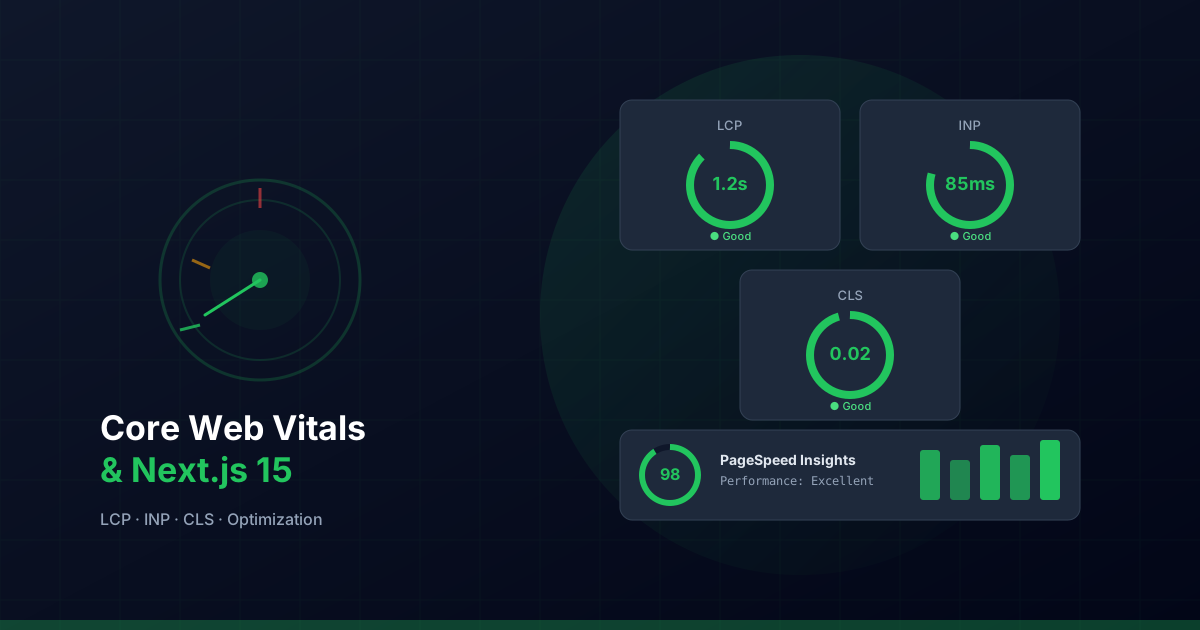
Core Web Vitals are the metrics Google uses to evaluate your website's user experience. In 2026, they remain a key SEO ranking factor, and with Next.js 15, you have all the tools you need to master them. This article shows you how to optimize each metric with practical examples.
What are Core Web Vitals?
Core Web Vitals are a set of user-centered metrics that measure loading speed, interactivity, and visual stability of a page:
- LCP (Largest Contentful Paint): Measures how long it takes to render the largest visible element. Target: < 2.5 seconds.
- INP (Interaction to Next Paint): Measures the latency of user interactions. Replaced FID in 2024. Target: < 200ms.
- CLS (Cumulative Layout Shift): Measures unexpected layout changes. Target: < 0.1.
Note: INP (Interaction to Next Paint) replaced FID (First Input Delay) as a Core Web Vital in March 2024. INP measures the latency of all interactions, not just the first one.
Optimize LCP: fast main content loading
LCP is typically determined by the hero image, a large text block, or a video. Next.js provides native tools to optimize it.
Optimized images with next/image
import Image from "next/image";

export function HeroBanner() {
  return (
    <section className="relative h-[600px]">
      <Image
        src="/assets/hero-banner.webp"
        alt="Professional web development"
        fill
        priority
        fetchPriority="high"
        sizes="100vw"
        className="object-cover"
        quality={85}
      />
      <div className="absolute inset-0 flex items-center justify-center">
        <h1 className="text-5xl font-bold text-white">
          Professional Web Development
        </h1>
      </div>
    </section>
  );
}
Keys to good LCP with images:
- priority: Add it to the hero image to preload it with
<link rel="preload">. - fetchPriority="high": Tells the browser this image has highest priority.
- sizes: Define responsive sizes so the browser picks the right file.
- WebP/AVIF format: Next.js automatically converts images to modern formats.
- quality: Adjust between 75-85 to balance quality and file size.
Preload fonts correctly
// app/[locale]/layout.tsx
import { Inter } from "next/font/google";

const inter = Inter({
  subsets: ["latin"],
  display: "swap",          // Avoids flash of invisible text
  preload: true,            // Preloads the font file
  variable: "--font-inter", // CSS variable for Tailwind
});

export default function RootLayout({
  children,
}: {
  children: React.ReactNode;
}) {
  return (
    <html className={inter.variable}>
      <body className="font-sans">{children}</body>
    </html>
  );
}
Server Components for instant LCP
Server Components render HTML on the server, eliminating the need to wait for JavaScript execution to display content:
// app/[locale]/page.tsx — Server Component
import { getTranslations } from "next-intl/server";

export default async function HomePage({
  params,
}: {
  params: Promise<{ locale: string }>;
}) {
  const { locale } = await params;
  const t = await getTranslations({ locale, namespace: "hero_banner" });

  return (
    <main>
      {/* This content is sent as pure HTML — instant LCP */}
      <h1 className="text-5xl font-bold">{t("title")}</h1>
      <p className="mt-4 text-xl text-gray-600">{t("subtitle")}</p>
    </main>
  );
}
Optimize INP: smooth interactions
INP measures how long the browser takes to visually respond to a user interaction (click, tap, keypress). It's the hardest metric to optimize because it depends on client-side JavaScript execution.
Reduce client-side JavaScript
// ❌ Bad: importing heavy library in Client Component
"use client";
import { Chart } from "chart.js/auto"; // ~200KB

// ✅ Better: dynamic import only when needed
"use client";
import dynamic from "next/dynamic";

const Chart = dynamic(() => import("@/components/Chart"), {
  loading: () => <div className="h-64 animate-pulse bg-gray-200 rounded" />,
  ssr: false,
});
Optimistic updates with useOptimistic
React 19 introduced useOptimistic to update the UI immediately while the actual operation completes in the background:
"use client";

import { useOptimistic, useTransition } from "react";

interface Comment {
  id: string;
  text: string;
  pending?: boolean;
}

export function CommentList({
  comments,
  addComment,
}: {
  comments: Comment[];
  addComment: (text: string) => Promise<void>;
}) {
  const [optimisticComments, setOptimistic] = useOptimistic(
    comments,
    (state, newComment: string) => [
      ...state,
      { id: "temp", text: newComment, pending: true },
    ]
  );
  const [, startTransition] = useTransition();

  async function handleSubmit(formData: FormData) {
    const text = formData.get("text") as string;
    startTransition(async () => {
      setOptimistic(text);      // UI updates instantly
      await addComment(text);   // Server Action runs in background
    });
  }

  return (
    <div>
      {optimisticComments.map((c) => (
        <p key={c.id} className={c.pending ? "opacity-50" : ""}>
          {c.text}
        </p>
      ))}
      <form action={handleSubmit}>
        <input name="text" aria-label="New comment" />
        <button type="submit">Comment</button>
      </form>
    </div>
  );
}
Debounce expensive event handlers
"use client";

import { useCallback, useRef } from "react";

export function SearchInput() {
  const timeoutRef = useRef<NodeJS.Timeout>(null);

  const handleSearch = useCallback((value: string) => {
    if (timeoutRef.current) clearTimeout(timeoutRef.current);
    timeoutRef.current = setTimeout(() => {
      // Execute search after 300ms of inactivity
      fetch(`/api/search?q=${encodeURIComponent(value)}`);
    }, 300);
  }, []);

  return (
    <input
      type="search"
      onChange={(e) => handleSearch(e.target.value)}
      placeholder="Search..."
      aria-label="Search the site"
    />
  );
}
Optimize CLS: visual stability
CLS measures how much the visible content of the page shifts unexpectedly. The main culprits are images without dimensions, web fonts, and dynamic content.
Reserve space for images
// ✅ Correct: next/image handles dimensions automatically
<Image
  src="/assets/project-thumbnail.webp"
  alt="Project preview"
  width={800}
  height={450}
  className="rounded-lg"
/>

// ✅ For background images with fill: use aspect-ratio
<div className="relative aspect-video">
  <Image
    src="/assets/hero.webp"
    alt="Hero"
    fill
    className="object-cover"
  />
</div>
Skeleton loaders for dynamic content
import { Suspense } from "react";

function ProjectCardSkeleton() {
  return (
    <div className="animate-pulse">
      <div className="aspect-video bg-gray-200 rounded-lg" />
      <div className="mt-4 h-6 w-3/4 bg-gray-200 rounded" />
      <div className="mt-2 h-4 w-full bg-gray-200 rounded" />
      <div className="mt-2 h-4 w-2/3 bg-gray-200 rounded" />
    </div>
  );
}

export default function ProjectsPage() {
  return (
    <div className="grid gap-6 md:grid-cols-3">
      <Suspense
        fallback={Array.from({ length: 6 }).map((_, i) => (
          <ProjectCardSkeleton key={i} />
        ))}
      >
        <ProjectList />
      </Suspense>
    </div>
  );
}
Prevent CLS from web fonts
/* styles/globals.css */

/* Use size-adjust to minimize font layout shift */
@font-face {
  font-family: "Mali";
  font-display: swap;
  size-adjust: 105%; /* Match fallback font size */
}

/* Reserve space with min-height on data-loading sections */
.hero-section {
  min-height: 600px;
}

@media (max-width: 768px) {
  .hero-section {
    min-height: 400px;
  }
}
Measuring Core Web Vitals in Next.js
Report to analytics
// app/[locale]/layout.tsx
import { SpeedInsights } from "@vercel/speed-insights/next";
import { Analytics } from "@vercel/analytics/next";

export default function RootLayout({
  children,
}: {
  children: React.ReactNode;
}) {
  return (
    <html>
      <body>
        {children}
        <SpeedInsights />
        <Analytics />
      </body>
    </html>
  );
}
Custom metrics with web-vitals
// utils/reportWebVitals.ts
import type { Metric } from "web-vitals";

export function reportWebVitals(metric: Metric) {
  const { name, value, rating } = metric;

  // Send to Google Analytics
  if (typeof window.gtag === "function") {
    window.gtag("event", name, {
      event_category: "Web Vitals",
      event_label: rating, // "good", "needs-improvement", "poor"
      value: Math.round(name === "CLS" ? value * 1000 : value),
      non_interaction: true,
    });
  }
}
Next.js configuration for performance
// next.config.ts
import type { NextConfig } from "next";

const nextConfig: NextConfig = {
  images: {
    formats: ["image/avif", "image/webp"],
    deviceSizes: [640, 750, 828, 1080, 1200],
    minimumCacheTTL: 60 * 60 * 24 * 30, // 30 days
  },
  experimental: {
    optimizeCss: true,            // Optimize CSS with critters
    optimizePackageImports: [     // Aggressive tree-shaking
      "@tabler/icons-react",
      "date-fns",
    ],
  },
  headers: async () => [
    {
      source: "/:path*",
      headers: [
        {
          key: "Cache-Control",
          value: "public, max-age=31536000, immutable",
        },
      ],
    },
  ],
};
Performance checklist
Use this checklist before every deployment to ensure good Core Web Vitals:
- LCP: Hero image with
priorityandfetchPriority="high". - LCP: Fonts with
display: swapand preloading. - LCP: Server Components for above-the-fold content.
- INP: Heavy components loaded with
dynamic(). - INP: Event handlers with debounce when needed.
- INP: Optimistic updates for user actions.
- CLS: All images with
widthandheightoraspect-ratio. - CLS: Skeleton loaders for async content.
- CLS:
min-heighton data-loading sections. - General: Bundle analyzer to detect heavy dependencies.
Conclusion
Optimizing Core Web Vitals isn't a one-time effort — it's an ongoing process. Next.js 15 provides the necessary primitives (Server Components, streaming, image optimization, font optimization) to achieve excellent scores. The key is to measure constantly, use the framework's native tools, and keep client-side JavaScript to a minimum.
With the techniques in this article, your site should achieve green scores on PageSpeed Insights and a noticeably faster user experience, especially on mobile devices.