Why Radix UI for Design Systems
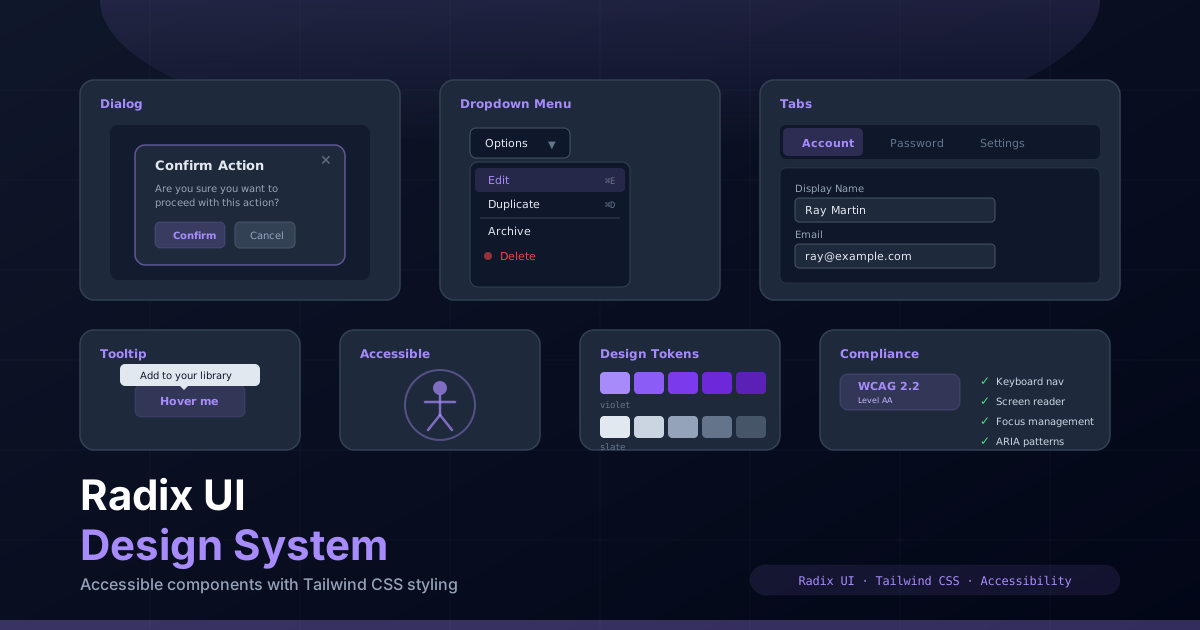
Building accessible, production-ready UI components from scratch is one of the hardest challenges in frontend development. You need to handle keyboard navigation, screen reader announcements, focus management, ARIA attributes, and edge cases that most developers never think about. Radix UI solves this by providing unstyled, accessible primitives that you can compose into a custom design system with full control over styling and behavior.
Unlike component libraries like Material UI or Chakra UI, Radix UI is headless — it provides behavior and accessibility without imposing any visual design. This makes it the perfect foundation for a Tailwind CSS-based design system where you want pixel-perfect control over every element.
The key advantages of Radix UI include:
- Accessible by default: Every primitive follows WAI-ARIA patterns with proper roles, states, and keyboard interactions built in.
- Composable: Components are built from small, focused parts that you can arrange and customize freely.
- Unstyled: Zero CSS shipped — you bring your own styles with Tailwind, CSS modules, or any approach.
- Incremental adoption: Install only the primitives you need. Each one is a separate package.
- SSR compatible: Works with Next.js App Router and Server Components out of the box.
Installing Radix Primitives
Radix UI follows a modular architecture where each component is an independent package. You install only what you need, keeping your bundle size minimal. Here are the most commonly used primitives for a design system:
# Core primitives for a design system
npm install @radix-ui/react-dialog
npm install @radix-ui/react-dropdown-menu
npm install @radix-ui/react-tabs
npm install @radix-ui/react-tooltip
npm install @radix-ui/react-popover
npm install @radix-ui/react-select
npm install @radix-ui/react-toggle
npm install @radix-ui/react-switch
npm install @radix-ui/react-accordion
npm install @radix-ui/react-navigation-menu
npm install @radix-ui/react-toast

# Or install multiple at once
npm install @radix-ui/react-dialog @radix-ui/react-dropdown-menu @radix-ui/react-tabs @radix-ui/react-tooltip @radix-ui/react-popover
You will also need the cn() utility for conditional class merging, which we will
set up in a later section. Make sure you have Tailwind CSS configured in your Next.js project
before proceeding.
Setting Up the cn() Utility
Before building any components, set up the cn() utility that combines
clsx for conditional classes with tailwind-merge for intelligent
class conflict resolution. This is the foundation of every well-built Tailwind component.
npm install clsx tailwind-merge// utils/classNames.ts
import { type ClassValue, clsx } from "clsx";
import { twMerge } from "tailwind-merge";
export function cn(...inputs: ClassValue[]): string {
return twMerge(clsx(inputs));
}
The cn() function ensures that when two conflicting Tailwind classes are passed,
the last one wins. For example, cn("p-4", "p-6") returns "p-6" instead
of including both classes. This is essential for building composable components where parent
components can override child styles.
Building a Dialog Component
The Dialog (or modal) is one of the most complex UI patterns to implement correctly. It requires focus trapping, scroll locking, proper ARIA attributes, and escape key handling. Radix UI handles all of this, and we just add Tailwind styling on top.
// components/ui/Dialog.tsx
"use client";

import * as React from "react";
import * as DialogPrimitive from "@radix-ui/react-dialog";
import { IconX } from "@tabler/icons-react";
import { cn } from "@/utils/classNames";

const Dialog = DialogPrimitive.Root;
const DialogTrigger = DialogPrimitive.Trigger;
const DialogPortal = DialogPrimitive.Portal;
const DialogClose = DialogPrimitive.Close;

const DialogOverlay = React.forwardRef<
  React.ElementRef<typeof DialogPrimitive.Overlay>,
  React.ComponentPropsWithoutRef<typeof DialogPrimitive.Overlay>
>(({ className, ...props }, ref) => (
  <DialogPrimitive.Overlay
    ref={ref}
    className={cn(
      "fixed inset-0 z-50 bg-black/60 backdrop-blur-sm",
      "data-[state=open]:animate-in data-[state=closed]:animate-out",
      "data-[state=closed]:fade-out-0 data-[state=open]:fade-in-0",
      className
    )}
    {...props}
  />
));
DialogOverlay.displayName = DialogPrimitive.Overlay.displayName;

const DialogContent = React.forwardRef<
  React.ElementRef<typeof DialogPrimitive.Content>,
  React.ComponentPropsWithoutRef<typeof DialogPrimitive.Content>
>(({ className, children, ...props }, ref) => (
  <DialogPortal>
    <DialogOverlay />
    <DialogPrimitive.Content
      ref={ref}
      className={cn(
        "fixed left-1/2 top-1/2 z-50 w-full max-w-lg -translate-x-1/2 -translate-y-1/2",
        "rounded-xl border border-gray-200 bg-white p-6 shadow-2xl",
        "dark:border-gray-700 dark:bg-gray-900",
        "data-[state=open]:animate-in data-[state=closed]:animate-out",
        "data-[state=closed]:fade-out-0 data-[state=open]:fade-in-0",
        "data-[state=closed]:zoom-out-95 data-[state=open]:zoom-in-95",
        "data-[state=closed]:slide-out-to-left-1/2 data-[state=closed]:slide-out-to-top-[48%]",
        "data-[state=open]:slide-in-from-left-1/2 data-[state=open]:slide-in-from-top-[48%]",
        "duration-200",
        className
      )}
      {...props}
    >
      {children}
      <DialogPrimitive.Close
        className={cn(
          "absolute right-4 top-4 rounded-sm opacity-70 transition-opacity",
          "hover:opacity-100",
          "focus-visible:outline-none focus-visible:ring-2 focus-visible:ring-primary-500",
          "focus-visible:ring-offset-2",
          "disabled:pointer-events-none"
        )}
        aria-label="Close dialog"
      >
        <IconX className="h-4 w-4" />
      </DialogPrimitive.Close>
    </DialogPrimitive.Content>
  </DialogPortal>
));
DialogContent.displayName = DialogPrimitive.Content.displayName;

const DialogHeader = ({ className, ...props }: React.HTMLAttributes<HTMLDivElement>) => (
  <div className={cn("flex flex-col space-y-1.5 text-center sm:text-left", className)} {...props} />
);

const DialogTitle = React.forwardRef<
  React.ElementRef<typeof DialogPrimitive.Title>,
  React.ComponentPropsWithoutRef<typeof DialogPrimitive.Title>
>(({ className, ...props }, ref) => (
  <DialogPrimitive.Title
    ref={ref}
    className={cn("text-lg font-semibold leading-none tracking-tight", className)}
    {...props}
  />
));
DialogTitle.displayName = DialogPrimitive.Title.displayName;

const DialogDescription = React.forwardRef<
  React.ElementRef<typeof DialogPrimitive.Description>,
  React.ComponentPropsWithoutRef<typeof DialogPrimitive.Description>
>(({ className, ...props }, ref) => (
  <DialogPrimitive.Description
    ref={ref}
    className={cn("text-sm text-gray-500 dark:text-gray-400", className)}
    {...props}
  />
));
DialogDescription.displayName = DialogPrimitive.Description.displayName;

export {
  Dialog,
  DialogPortal,
  DialogOverlay,
  DialogClose,
  DialogTrigger,
  DialogContent,
  DialogHeader,
  DialogTitle,
  DialogDescription,
};
Usage of the Dialog component is clean and declarative:
import {
  Dialog,
  DialogContent,
  DialogDescription,
  DialogHeader,
  DialogTitle,
  DialogTrigger,
} from "@/components/ui/Dialog";

export function ContactDialog() {
  return (
    <Dialog>
      <DialogTrigger asChild>
        <button className="rounded-lg bg-primary-700 px-6 py-3 text-white hover:bg-primary-800">
          Get in Touch
        </button>
      </DialogTrigger>
      <DialogContent>
        <DialogHeader>
          <DialogTitle>Contact Us</DialogTitle>
          <DialogDescription>
            Fill out the form below and we will get back to you within 24 hours.
          </DialogDescription>
        </DialogHeader>
        <form className="mt-4 space-y-4">
          <input
            type="email"
            placeholder="your@email.com"
            className="w-full rounded-lg border border-gray-300 px-4 py-2
              focus:border-primary-500 focus:outline-none focus:ring-2 focus:ring-primary-500/20"
            aria-label="Email address"
          />
          <textarea
            placeholder="Your message..."
            rows={4}
            className="w-full rounded-lg border border-gray-300 px-4 py-2
              focus:border-primary-500 focus:outline-none focus:ring-2 focus:ring-primary-500/20"
            aria-label="Message"
          />
          <button
            type="submit"
            className="w-full rounded-lg bg-primary-700 px-6 py-3 text-white hover:bg-primary-800"
          >
            Send Message
          </button>
        </form>
      </DialogContent>
    </Dialog>
  );
}
Building a Dropdown Menu
Dropdown menus require complex keyboard navigation: arrow keys to move between items, Enter or Space to select, Escape to close, and type-ahead search. Radix UI provides all of this out of the box.
// components/ui/DropdownMenu.tsx
"use client";

import * as React from "react";
import * as DropdownMenuPrimitive from "@radix-ui/react-dropdown-menu";
import { IconCheck, IconChevronRight, IconCircle } from "@tabler/icons-react";
import { cn } from "@/utils/classNames";

const DropdownMenu = DropdownMenuPrimitive.Root;
const DropdownMenuTrigger = DropdownMenuPrimitive.Trigger;
const DropdownMenuGroup = DropdownMenuPrimitive.Group;
const DropdownMenuSub = DropdownMenuPrimitive.Sub;
const DropdownMenuRadioGroup = DropdownMenuPrimitive.RadioGroup;

const DropdownMenuContent = React.forwardRef<
  React.ElementRef<typeof DropdownMenuPrimitive.Content>,
  React.ComponentPropsWithoutRef<typeof DropdownMenuPrimitive.Content>
>(({ className, sideOffset = 4, ...props }, ref) => (
  <DropdownMenuPrimitive.Portal>
    <DropdownMenuPrimitive.Content
      ref={ref}
      sideOffset={sideOffset}
      className={cn(
        "z-50 min-w-[8rem] overflow-hidden rounded-md border border-gray-200 bg-white p-1 shadow-lg",
        "dark:border-gray-700 dark:bg-gray-900",
        "data-[state=open]:animate-in data-[state=closed]:animate-out",
        "data-[state=closed]:fade-out-0 data-[state=open]:fade-in-0",
        "data-[state=closed]:zoom-out-95 data-[state=open]:zoom-in-95",
        "data-[side=bottom]:slide-in-from-top-2 data-[side=left]:slide-in-from-right-2",
        "data-[side=right]:slide-in-from-left-2 data-[side=top]:slide-in-from-bottom-2",
        className
      )}
      {...props}
    />
  </DropdownMenuPrimitive.Portal>
));
DropdownMenuContent.displayName = DropdownMenuPrimitive.Content.displayName;

const DropdownMenuItem = React.forwardRef<
  React.ElementRef<typeof DropdownMenuPrimitive.Item>,
  React.ComponentPropsWithoutRef<typeof DropdownMenuPrimitive.Item> & {
    inset?: boolean;
  }
>(({ className, inset, ...props }, ref) => (
  <DropdownMenuPrimitive.Item
    ref={ref}
    className={cn(
      "relative flex cursor-default select-none items-center rounded-sm px-2 py-1.5 text-sm",
      "outline-none transition-colors",
      "focus:bg-gray-100 focus:text-gray-900",
      "dark:focus:bg-gray-800 dark:focus:text-gray-100",
      "data-[disabled]:pointer-events-none data-[disabled]:opacity-50",
      inset && "pl-8",
      className
    )}
    {...props}
  />
));
DropdownMenuItem.displayName = DropdownMenuPrimitive.Item.displayName;

const DropdownMenuSeparator = React.forwardRef<
  React.ElementRef<typeof DropdownMenuPrimitive.Separator>,
  React.ComponentPropsWithoutRef<typeof DropdownMenuPrimitive.Separator>
>(({ className, ...props }, ref) => (
  <DropdownMenuPrimitive.Separator
    ref={ref}
    className={cn("-mx-1 my-1 h-px bg-gray-200 dark:bg-gray-700", className)}
    {...props}
  />
));
DropdownMenuSeparator.displayName = DropdownMenuPrimitive.Separator.displayName;

const DropdownMenuLabel = React.forwardRef<
  React.ElementRef<typeof DropdownMenuPrimitive.Label>,
  React.ComponentPropsWithoutRef<typeof DropdownMenuPrimitive.Label> & {
    inset?: boolean;
  }
>(({ className, inset, ...props }, ref) => (
  <DropdownMenuPrimitive.Label
    ref={ref}
    className={cn(
      "px-2 py-1.5 text-sm font-semibold text-gray-900 dark:text-gray-100",
      inset && "pl-8",
      className
    )}
    {...props}
  />
));
DropdownMenuLabel.displayName = DropdownMenuPrimitive.Label.displayName;

export {
  DropdownMenu,
  DropdownMenuTrigger,
  DropdownMenuContent,
  DropdownMenuItem,
  DropdownMenuSeparator,
  DropdownMenuLabel,
  DropdownMenuGroup,
  DropdownMenuSub,
  DropdownMenuRadioGroup,
};
Here is a practical example of a user menu dropdown:
import {
  DropdownMenu,
  DropdownMenuContent,
  DropdownMenuItem,
  DropdownMenuLabel,
  DropdownMenuSeparator,
  DropdownMenuTrigger,
} from "@/components/ui/DropdownMenu";
import { IconUser, IconSettings, IconLogout } from "@tabler/icons-react";

export function UserMenu() {
  return (
    <DropdownMenu>
      <DropdownMenuTrigger asChild>
        <button
          className="flex items-center gap-2 rounded-full bg-gray-100 px-3 py-2
            hover:bg-gray-200 focus-visible:outline-none focus-visible:ring-2
            focus-visible:ring-primary-500"
          aria-label="Open user menu"
        >
          <IconUser className="h-5 w-5" />
          <span className="text-sm font-medium">Ray Martin</span>
        </button>
      </DropdownMenuTrigger>
      <DropdownMenuContent align="end" className="w-56">
        <DropdownMenuLabel>My Account</DropdownMenuLabel>
        <DropdownMenuSeparator />
        <DropdownMenuItem>
          <IconUser className="mr-2 h-4 w-4" />
          <span>Profile</span>
        </DropdownMenuItem>
        <DropdownMenuItem>
          <IconSettings className="mr-2 h-4 w-4" />
          <span>Settings</span>
        </DropdownMenuItem>
        <DropdownMenuSeparator />
        <DropdownMenuItem className="text-red-600 focus:text-red-700">
          <IconLogout className="mr-2 h-4 w-4" />
          <span>Log out</span>
        </DropdownMenuItem>
      </DropdownMenuContent>
    </DropdownMenu>
  );
}
Tabs Component with Animated Indicator
Tabs are one of the most versatile navigation patterns. Radix provides the accessibility foundation — including arrow key navigation between tabs, automatic activation, and proper ARIA roles — while we add a smooth animated indicator using Tailwind.
// components/ui/Tabs.tsx
"use client";

import * as React from "react";
import * as TabsPrimitive from "@radix-ui/react-tabs";
import { cn } from "@/utils/classNames";

const Tabs = TabsPrimitive.Root;

const TabsList = React.forwardRef<
  React.ElementRef<typeof TabsPrimitive.List>,
  React.ComponentPropsWithoutRef<typeof TabsPrimitive.List>
>(({ className, ...props }, ref) => (
  <TabsPrimitive.List
    ref={ref}
    className={cn(
      "inline-flex h-10 items-center justify-center rounded-md",
      "bg-gray-100 p-1 text-gray-500",
      "dark:bg-gray-800 dark:text-gray-400",
      className
    )}
    {...props}
  />
));
TabsList.displayName = TabsPrimitive.List.displayName;

const TabsTrigger = React.forwardRef<
  React.ElementRef<typeof TabsPrimitive.Trigger>,
  React.ComponentPropsWithoutRef<typeof TabsPrimitive.Trigger>
>(({ className, ...props }, ref) => (
  <TabsPrimitive.Trigger
    ref={ref}
    className={cn(
      "inline-flex items-center justify-center whitespace-nowrap rounded-sm px-3 py-1.5",
      "text-sm font-medium ring-offset-white transition-all",
      "focus-visible:outline-none focus-visible:ring-2 focus-visible:ring-primary-500",
      "focus-visible:ring-offset-2",
      "disabled:pointer-events-none disabled:opacity-50",
      "data-[state=active]:bg-white data-[state=active]:text-gray-900",
      "data-[state=active]:shadow-sm",
      "dark:ring-offset-gray-900 dark:data-[state=active]:bg-gray-900",
      "dark:data-[state=active]:text-gray-100",
      className
    )}
    {...props}
  />
));
TabsTrigger.displayName = TabsPrimitive.Trigger.displayName;

const TabsContent = React.forwardRef<
  React.ElementRef<typeof TabsPrimitive.Content>,
  React.ComponentPropsWithoutRef<typeof TabsPrimitive.Content>
>(({ className, ...props }, ref) => (
  <TabsPrimitive.Content
    ref={ref}
    className={cn(
      "mt-2 ring-offset-white",
      "focus-visible:outline-none focus-visible:ring-2 focus-visible:ring-primary-500",
      "focus-visible:ring-offset-2",
      "dark:ring-offset-gray-900",
      className
    )}
    {...props}
  />
));
TabsContent.displayName = TabsPrimitive.Content.displayName;

export { Tabs, TabsList, TabsTrigger, TabsContent };
For a more advanced tabs component with a sliding animated indicator, you can track the active tab position and animate a highlight element:
// components/ui/AnimatedTabs.tsx
"use client";

import { useState, useRef, useEffect } from "react";
import * as TabsPrimitive from "@radix-ui/react-tabs";
import { cn } from "@/utils/classNames";

interface Tab {
  value: string;
  label: string;
}

interface AnimatedTabsProps {
  tabs: Tab[];
  defaultValue: string;
  children: React.ReactNode;
}

export function AnimatedTabs({ tabs, defaultValue, children }: AnimatedTabsProps) {
  const [activeTab, setActiveTab] = useState(defaultValue);
  const [indicatorStyle, setIndicatorStyle] = useState({ left: 0, width: 0 });
  const tabsRef = useRef<Map<string, HTMLButtonElement>>(new Map());

  useEffect(() => {
    const activeElement = tabsRef.current.get(activeTab);
    if (activeElement) {
      const { offsetLeft, offsetWidth } = activeElement;
      setIndicatorStyle({ left: offsetLeft, width: offsetWidth });
    }
  }, [activeTab]);

  return (
    <TabsPrimitive.Root value={activeTab} onValueChange={setActiveTab}>
      <TabsPrimitive.List className="relative flex border-b border-gray-200 dark:border-gray-700">
        {tabs.map((tab) => (
          <TabsPrimitive.Trigger
            key={tab.value}
            value={tab.value}
            ref={(el) => {
              if (el) tabsRef.current.set(tab.value, el);
            }}
            className={cn(
              "relative z-10 px-4 py-2 text-sm font-medium transition-colors",
              "focus-visible:outline-none focus-visible:ring-2 focus-visible:ring-primary-500",
              activeTab === tab.value
                ? "text-primary-700 dark:text-primary-400"
                : "text-gray-500 hover:text-gray-700 dark:text-gray-400 dark:hover:text-gray-200"
            )}
          >
            {tab.label}
          </TabsPrimitive.Trigger>
        ))}
        <div
          className="absolute bottom-0 h-0.5 bg-primary-700 transition-all duration-300 ease-out dark:bg-primary-400"
          style={{ left: indicatorStyle.left, width: indicatorStyle.width }}
          aria-hidden="true"
        />
      </TabsPrimitive.List>
      {children}
    </TabsPrimitive.Root>
  );
}
Tooltip with Proper ARIA Attributes
Tooltips provide supplementary information when hovering or focusing on an element. Radix handles
the timing, positioning, and ARIA relationships automatically. The tooltip uses
role="tooltip" and connects to the trigger via aria-describedby.
// components/ui/Tooltip.tsx
"use client";

import * as React from "react";
import * as TooltipPrimitive from "@radix-ui/react-tooltip";
import { cn } from "@/utils/classNames";

const TooltipProvider = TooltipPrimitive.Provider;
const Tooltip = TooltipPrimitive.Root;
const TooltipTrigger = TooltipPrimitive.Trigger;

const TooltipContent = React.forwardRef<
  React.ElementRef<typeof TooltipPrimitive.Content>,
  React.ComponentPropsWithoutRef<typeof TooltipPrimitive.Content>
>(({ className, sideOffset = 4, ...props }, ref) => (
  <TooltipPrimitive.Content
    ref={ref}
    sideOffset={sideOffset}
    className={cn(
      "z-50 overflow-hidden rounded-md border border-gray-200 bg-white px-3 py-1.5",
      "text-sm text-gray-900 shadow-md",
      "dark:border-gray-700 dark:bg-gray-900 dark:text-gray-100",
      "animate-in fade-in-0 zoom-in-95",
      "data-[state=closed]:animate-out data-[state=closed]:fade-out-0",
      "data-[state=closed]:zoom-out-95",
      "data-[side=bottom]:slide-in-from-top-2",
      "data-[side=left]:slide-in-from-right-2",
      "data-[side=right]:slide-in-from-left-2",
      "data-[side=top]:slide-in-from-bottom-2",
      className
    )}
    {...props}
  />
));
TooltipContent.displayName = TooltipPrimitive.Content.displayName;

export { Tooltip, TooltipTrigger, TooltipContent, TooltipProvider };
Wrap your application in a TooltipProvider with a global delay, then use tooltips
throughout your components:
import { Tooltip, TooltipContent, TooltipProvider, TooltipTrigger } from "@/components/ui/Tooltip";
import { IconCopy, IconCheck } from "@tabler/icons-react";

export function CopyButton({ text }: { text: string }) {
  const [copied, setCopied] = useState(false);

  const handleCopy = async () => {
    await navigator.clipboard.writeText(text);
    setCopied(true);
    setTimeout(() => setCopied(false), 2000);
  };

  return (
    <TooltipProvider delayDuration={300}>
      <Tooltip>
        <TooltipTrigger asChild>
          <button
            onClick={handleCopy}
            className="rounded-md p-2 hover:bg-gray-100 focus-visible:outline-none
              focus-visible:ring-2 focus-visible:ring-primary-500"
            aria-label={copied ? "Copied to clipboard" : "Copy to clipboard"}
          >
            {copied ? (
              <IconCheck className="h-4 w-4 text-green-600" />
            ) : (
              <IconCopy className="h-4 w-4 text-gray-600" />
            )}
          </button>
        </TooltipTrigger>
        <TooltipContent>
          <p>{copied ? "Copied!" : "Copy to clipboard"}</p>
        </TooltipContent>
      </Tooltip>
    </TooltipProvider>
  );
}
Popover for Complex Content
While tooltips are for simple text hints, Popovers can contain any content — forms, lists, rich text, or interactive elements. Unlike tooltips, popovers are triggered by clicking (not hovering) and remain open until explicitly closed.
// components/ui/Popover.tsx
"use client";

import * as React from "react";
import * as PopoverPrimitive from "@radix-ui/react-popover";
import { cn } from "@/utils/classNames";

const Popover = PopoverPrimitive.Root;
const PopoverTrigger = PopoverPrimitive.Trigger;

const PopoverContent = React.forwardRef<
  React.ElementRef<typeof PopoverPrimitive.Content>,
  React.ComponentPropsWithoutRef<typeof PopoverPrimitive.Content>
>(({ className, align = "center", sideOffset = 4, ...props }, ref) => (
  <PopoverPrimitive.Portal>
    <PopoverPrimitive.Content
      ref={ref}
      align={align}
      sideOffset={sideOffset}
      className={cn(
        "z-50 w-72 rounded-md border border-gray-200 bg-white p-4 shadow-lg outline-none",
        "dark:border-gray-700 dark:bg-gray-900",
        "data-[state=open]:animate-in data-[state=closed]:animate-out",
        "data-[state=closed]:fade-out-0 data-[state=open]:fade-in-0",
        "data-[state=closed]:zoom-out-95 data-[state=open]:zoom-in-95",
        "data-[side=bottom]:slide-in-from-top-2",
        "data-[side=left]:slide-in-from-right-2",
        "data-[side=right]:slide-in-from-left-2",
        "data-[side=top]:slide-in-from-bottom-2",
        className
      )}
      {...props}
    />
  </PopoverPrimitive.Portal>
));
PopoverContent.displayName = PopoverPrimitive.Content.displayName;

export { Popover, PopoverTrigger, PopoverContent };
A practical example of a filter popover with form controls:
import { Popover, PopoverContent, PopoverTrigger } from "@/components/ui/Popover";
import { IconFilter } from "@tabler/icons-react";

export function FilterPopover() {
  return (
    <Popover>
      <PopoverTrigger asChild>
        <button
          className="inline-flex items-center gap-2 rounded-lg border border-gray-300 px-4 py-2
            text-sm hover:bg-gray-50 focus-visible:outline-none focus-visible:ring-2
            focus-visible:ring-primary-500"
          aria-label="Open filter options"
        >
          <IconFilter className="h-4 w-4" />
          Filters
        </button>
      </PopoverTrigger>
      <PopoverContent className="w-80">
        <div className="space-y-4">
          <h4 className="text-sm font-semibold">Filter Projects</h4>
          <div className="space-y-2">
            <label className="text-sm text-gray-600">Category</label>
            <select
              className="w-full rounded-md border border-gray-300 px-3 py-2 text-sm
                focus:border-primary-500 focus:outline-none focus:ring-1 focus:ring-primary-500"
              aria-label="Filter by category"
            >
              <option value="">All categories</option>
              <option value="web">Web Development</option>
              <option value="mobile">Mobile Apps</option>
              <option value="design">Design Systems</option>
            </select>
          </div>
          <div className="flex items-center gap-2">
            <input type="checkbox" id="featured" className="rounded border-gray-300" />
            <label htmlFor="featured" className="text-sm text-gray-600">Featured only</label>
          </div>
        </div>
      </PopoverContent>
    </Popover>
  );
}
Theming with CSS Variables and Tailwind
A robust design system needs a theming layer that can adapt to different brands, dark mode, and user preferences. The best approach combines CSS custom properties with Tailwind's configuration to create a single source of truth for all design tokens.
/* styles/globals.css */
@tailwind base;
@tailwind components;
@tailwind utilities;

@layer base {
  :root {
    --background: 255 255 255;
    --foreground: 15 23 42;
    --card: 249 250 251;
    --card-foreground: 15 23 42;
    --primary: 12 74 110;
    --primary-foreground: 255 255 255;
    --secondary: 241 245 249;
    --secondary-foreground: 15 23 42;
    --muted: 241 245 249;
    --muted-foreground: 100 116 139;
    --accent: 241 245 249;
    --accent-foreground: 15 23 42;
    --destructive: 239 68 68;
    --destructive-foreground: 255 255 255;
    --border: 226 232 240;
    --input: 226 232 240;
    --ring: 14 165 233;
    --radius: 0.5rem;
  }

  .dark {
    --background: 15 23 42;
    --foreground: 248 250 252;
    --card: 30 41 59;
    --card-foreground: 248 250 252;
    --primary: 56 189 248;
    --primary-foreground: 15 23 42;
    --secondary: 30 41 59;
    --secondary-foreground: 248 250 252;
    --muted: 30 41 59;
    --muted-foreground: 148 163 184;
    --accent: 30 41 59;
    --accent-foreground: 248 250 252;
    --destructive: 239 68 68;
    --destructive-foreground: 255 255 255;
    --border: 51 65 85;
    --input: 51 65 85;
    --ring: 56 189 248;
  }
}// tailwind.config.ts
import type { Config } from "tailwindcss";
const config: Config = {
darkMode: "class",
content: [
"./app/**/*.{js,ts,jsx,tsx,mdx}",
"./components/**/*.{js,ts,jsx,tsx,mdx}",
],
theme: {
extend: {
colors: {
background: "rgb(var(--background) / <alpha-value>)",
foreground: "rgb(var(--foreground) / <alpha-value>)",
card: {
DEFAULT: "rgb(var(--card) / <alpha-value>)",
foreground: "rgb(var(--card-foreground) / <alpha-value>)",
},
primary: {
DEFAULT: "rgb(var(--primary) / <alpha-value>)",
foreground: "rgb(var(--primary-foreground) / <alpha-value>)",
},
secondary: {
DEFAULT: "rgb(var(--secondary) / <alpha-value>)",
foreground: "rgb(var(--secondary-foreground) / <alpha-value>)",
},
muted: {
DEFAULT: "rgb(var(--muted) / <alpha-value>)",
foreground: "rgb(var(--muted-foreground) / <alpha-value>)",
},
destructive: {
DEFAULT: "rgb(var(--destructive) / <alpha-value>)",
foreground: "rgb(var(--destructive-foreground) / <alpha-value>)",
},
border: "rgb(var(--border) / <alpha-value>)",
input: "rgb(var(--input) / <alpha-value>)",
ring: "rgb(var(--ring) / <alpha-value>)",
},
borderRadius: {
lg: "var(--radius)",
md: "calc(var(--radius) - 2px)",
sm: "calc(var(--radius) - 4px)",
},
},
},
plugins: [],
};
export default config;
With this setup, all Radix components automatically adapt to the current theme. You can use
classes like bg-background, text-foreground,
border-border, and bg-primary throughout your components, and
they will resolve to the correct values based on the active theme.
WCAG 2.2 Compliance Best Practices
Radix UI handles most accessibility concerns automatically, but there are additional best practices you should follow when building your design system to meet WCAG 2.2 compliance.
Focus-visible Styles
Every interactive element must have a visible focus indicator for keyboard users. Use
focus-visible instead of focus to avoid showing focus rings on
mouse clicks:
// Base focus style utility for all interactive elements
const focusStyles = cn(
  "focus-visible:outline-none",
  "focus-visible:ring-2",
  "focus-visible:ring-ring",
  "focus-visible:ring-offset-2",
  "focus-visible:ring-offset-background"
);

// Apply to buttons, links, inputs, and any interactive element
<button className={cn("rounded-lg px-4 py-2", focusStyles)}>
  Click me
</button>

<a href="/about" className={cn("text-primary underline", focusStyles)}>
  Learn more
</a>
ARIA Labels and Roles
While Radix primitives handle ARIA attributes internally, you must provide meaningful labels for your trigger elements and any custom interactive components:
// Always provide aria-label for icon-only buttons
<DialogTrigger asChild>
  <button aria-label="Open settings dialog">
    <IconSettings className="h-5 w-5" />
  </button>
</DialogTrigger>

// Use aria-describedby for additional context
<DialogContent aria-describedby="dialog-description">
  <DialogTitle>Delete Account</DialogTitle>
  <DialogDescription id="dialog-description">
    This action cannot be undone. All your data will be permanently removed.
  </DialogDescription>
</DialogContent>

// Screen reader only text for visual elements
<span className="sr-only">Loading, please wait</span>

// Live regions for dynamic content updates
<div role="status" aria-live="polite" className="sr-only">
  {message}
</div>
Color Contrast and Motion
- Contrast ratios: Text must meet a minimum contrast ratio of 4.5:1 for normal text and 3:1 for large text against its background. Use tools like the WebAIM contrast checker to verify.
- Focus indicators: Focus rings must have a contrast ratio of at least 3:1 against the background.
- Reduced motion: Wrap all animations with the
motion-safevariant to respectprefers-reduced-motion. - Touch targets: Interactive elements should have a minimum size of 44x44 CSS pixels for touch accessibility.
// Respect reduced motion preferences
<div className="motion-safe:animate-in motion-safe:fade-in-0 motion-reduce:animate-none">
  {children}
</div>

// Minimum touch target size
<button className="min-h-[44px] min-w-[44px] rounded-lg px-4 py-2">
  Action
</button>
Composing Primitives into Higher-Level Components
The real power of Radix UI emerges when you compose multiple primitives into higher-level, domain-specific components. Instead of exposing raw Radix primitives to your application code, build purpose-built components that encapsulate both behavior and styling.
// components/common/ConfirmDialog.tsx
"use client";

import { useState } from "react";
import {
  Dialog,
  DialogContent,
  DialogDescription,
  DialogHeader,
  DialogTitle,
  DialogTrigger,
  DialogClose,
} from "@/components/ui/Dialog";
import { cn } from "@/utils/classNames";

interface ConfirmDialogProps {
  title: string;
  description: string;
  confirmLabel?: string;
  cancelLabel?: string;
  variant?: "danger" | "default";
  onConfirm: () => void | Promise<void>;
  trigger: React.ReactNode;
}

export function ConfirmDialog({
  title,
  description,
  confirmLabel = "Confirm",
  cancelLabel = "Cancel",
  variant = "default",
  onConfirm,
  trigger,
}: ConfirmDialogProps) {
  const [open, setOpen] = useState(false);
  const [loading, setLoading] = useState(false);

  const handleConfirm = async () => {
    setLoading(true);
    try {
      await onConfirm();
      setOpen(false);
    } finally {
      setLoading(false);
    }
  };

  return (
    <Dialog open={open} onOpenChange={setOpen}>
      <DialogTrigger asChild>{trigger}</DialogTrigger>
      <DialogContent>
        <DialogHeader>
          <DialogTitle>{title}</DialogTitle>
          <DialogDescription>{description}</DialogDescription>
        </DialogHeader>
        <div className="mt-6 flex justify-end gap-3">
          <DialogClose asChild>
            <button
              className="rounded-lg border border-gray-300 px-4 py-2 text-sm font-medium
                hover:bg-gray-50 focus-visible:outline-none focus-visible:ring-2
                focus-visible:ring-primary-500"
            >
              {cancelLabel}
            </button>
          </DialogClose>
          <button
            onClick={handleConfirm}
            disabled={loading}
            className={cn(
              "rounded-lg px-4 py-2 text-sm font-medium text-white",
              "focus-visible:outline-none focus-visible:ring-2 focus-visible:ring-offset-2",
              "disabled:opacity-50 disabled:cursor-not-allowed",
              variant === "danger"
                ? "bg-red-600 hover:bg-red-700 focus-visible:ring-red-500"
                : "bg-primary-700 hover:bg-primary-800 focus-visible:ring-primary-500"
            )}
          >
            {loading ? "Processing..." : confirmLabel}
          </button>
        </div>
      </DialogContent>
    </Dialog>
  );
}
Usage becomes extremely simple and consistent across your application:
// Confirmation before deleting a project
<ConfirmDialog
  title="Delete Project"
  description="Are you sure you want to delete this project? This action cannot be undone."
  confirmLabel="Delete"
  variant="danger"
  onConfirm={async () => {
    await deleteProject(project.id);
  }}
  trigger={
    <button className="text-red-600 hover:text-red-700">
      Delete
    </button>
  }
/>
Building a design system with Radix UI and Tailwind CSS gives you the best of both worlds: production-grade accessibility from Radix, and complete visual control from Tailwind. Each primitive is a building block that you can compose into increasingly complex components while maintaining consistency and accessibility throughout your application.