Performance in React 19: A New Era
React 19 represents a significant leap forward in performance. With the introduction of the React Compiler, improvements to Suspense, mature Server Components, and new hooks like useTransition and useOptimistic, many of the optimizations that previously required manual intervention now happen automatically. But understanding these tools and knowing when to apply them remains essential for building fast applications.
This guide covers the most important performance optimization techniques in React 19, from framework features to the Web Vitals metrics you need to monitor in production.
React Compiler: Automatic Memoization
The React Compiler (formerly known as React Forget) is the most revolutionary performance improvement in React 19. It is a compiler that analyzes your code at build time and automatically applies memoization where needed, eliminating the need for manual React.memo, useMemo, and useCallback.
How the Compiler Works
The compiler analyzes your code and applies React's rules to determine which values can change and which are stable between renders. It then automatically inserts the equivalent memoization instructions:
// What YOU write (React 19 with the compiler)
function ProductList({ products, category }: {
  products: Product[];
  category: string;
}) {
  const filtered = products.filter((p) => p.category === category);
  const sorted = filtered.sort((a, b) => a.price - b.price);

  return (
    <ul>
      {sorted.map((product) => (
        <ProductCard
          key={product.id}
          product={product}
          onAddToCart={() => addToCart(product.id)}
        />
      ))}
    </ul>
  );
}

// What the COMPILER generates internally (equivalent to):
function ProductList({ products, category }: {
  products: Product[];
  category: string;
}) {
  const filtered = useMemo(
    () => products.filter((p) => p.category === category),
    [products, category]
  );
  const sorted = useMemo(
    () => [...filtered].sort((a, b) => a.price - b.price),
    [filtered]
  );
  const onAddToCart = useCallback(
    (id: string) => addToCart(id),
    []
  );

  return (
    <ul>
      {sorted.map((product) => (
        <MemoizedProductCard
          key={product.id}
          product={product}
          onAddToCart={() => onAddToCart(product.id)}
        />
      ))}
    </ul>
  );
}
Enabling the Compiler in Next.js
# Install the compiler plugin
npm install -D babel-plugin-react-compiler// next.config.ts
import type { NextConfig } from "next";
const nextConfig: NextConfig = {
experimental: {
reactCompiler: true,
},
};
export default nextConfig;
The compiler works best when your code follows the Rules of React: pure components, no mutations during render, and no side effects outside of useEffect. If the compiler detects code that violates these rules, it simply skips it without causing errors.
ESLint Validation
Install the ESLint plugin to verify your code is compatible with the compiler:
npm install -D eslint-plugin-react-compiler// eslint.config.mjs
import reactCompiler from "eslint-plugin-react-compiler";
export default [
{
plugins: {
"react-compiler": reactCompiler,
},
rules: {
"react-compiler/react-compiler": "error",
},
},
];useTransition: Non-Blocking UI Updates
useTransition lets you mark state updates as low-priority transitions. This means the UI continues responding to user interactions while React processes the update in the background.
// components/SearchWithTransition.tsx
"use client";

import { useState, useTransition } from "react";

interface SearchResult {
  id: string;
  title: string;
  description: string;
}

export function SearchWithTransition() {
  const [query, setQuery] = useState("");
  const [results, setResults] = useState<SearchResult[]>([]);
  const [isPending, startTransition] = useTransition();

  function handleSearch(value: string) {
    // Urgent update: update the input immediately
    setQuery(value);

    // Transition: search is processed without blocking the input
    startTransition(async () => {
      const response = await fetch(`/api/search?q=${value}`);
      const data = await response.json();
      setResults(data.results);
    });
  }

  return (
    <div>
      <input
        type="search"
        value={query}
        onChange={(e) => handleSearch(e.target.value)}
        placeholder="Search projects..."
        className="w-full rounded-lg border px-4 py-2"
        aria-label="Search projects"
      />

      {isPending && (
        <div className="mt-2 text-sm text-gray-500" role="status">
          Searching...
        </div>
      )}

      <ul className={isPending ? "opacity-60" : ""} role="list">
        {results.map((result) => (
          <li key={result.id} className="border-b py-3">
            <h3 className="font-semibold">{result.title}</h3>
            <p className="text-gray-600">{result.description}</p>
          </li>
        ))}
      </ul>
    </div>
  );
}
The key difference is that without useTransition, typing in the input could feel sluggish if the search is expensive, because React would try to process both updates with the same priority. With the transition, the input responds instantly while results update when they are ready.
useTransition for Navigation
// components/TabNavigation.tsx
"use client";

import { useState, useTransition } from "react";

const tabs = ["overview", "analytics", "settings"] as const;
type Tab = (typeof tabs)[number];

export function TabNavigation() {
  const [activeTab, setActiveTab] = useState<Tab>("overview");
  const [isPending, startTransition] = useTransition();

  function handleTabChange(tab: Tab) {
    startTransition(() => {
      setActiveTab(tab);
    });
  }

  return (
    <div>
      <nav role="tablist" className="flex gap-2 border-b">
        {tabs.map((tab) => (
          <button
            key={tab}
            role="tab"
            aria-selected={activeTab === tab}
            onClick={() => handleTabChange(tab)}
            className={
              activeTab === tab
                ? "border-b-2 border-primary px-4 py-2 font-semibold"
                : "px-4 py-2 text-gray-500 hover:text-gray-700"
            }
          >
            {tab.charAt(0).toUpperCase() + tab.slice(1)}
          </button>
        ))}
      </nav>

      <div className={isPending ? "opacity-50 transition-opacity" : ""}>
        {activeTab === "overview" && <OverviewPanel />}
        {activeTab === "analytics" && <AnalyticsPanel />}
        {activeTab === "settings" && <SettingsPanel />}
      </div>
    </div>
  );
}
Suspense for Data Fetching and Code Splitting
Suspense in React 19 is far more powerful than in previous versions. It now natively supports data fetching in Server Components, streaming SSR, and declarative code splitting.
Suspense with Server Components
// app/dashboard/page.tsx
import { Suspense } from "react";

export default function DashboardPage() {
  return (
    <main>
      <h1 className="text-2xl font-bold">Dashboard</h1>

      {/* Each section loads independently */}
      <div className="grid grid-cols-1 gap-6 md:grid-cols-2 lg:grid-cols-3">
        <Suspense fallback={<StatsSkeleton />}>
          <StatsCards />
        </Suspense>

        <Suspense fallback={<ChartSkeleton />}>
          <RevenueChart />
        </Suspense>

        <Suspense fallback={<TableSkeleton />}>
          <RecentOrders />
        </Suspense>
      </div>
    </main>
  );
}

// Each component is an async Server Component that does its own fetch
async function StatsCards() {
  const stats = await fetchStats(); // Suspends automatically

  return (
    <div className="grid grid-cols-3 gap-4">
      {stats.map((stat) => (
        <div key={stat.label} className="rounded-lg border p-4">
          <p className="text-sm text-gray-500">{stat.label}</p>
          <p className="text-2xl font-bold">{stat.value}</p>
        </div>
      ))}
    </div>
  );
}

async function RevenueChart() {
  const revenue = await fetchRevenue(); // Independent data
  return <Chart data={revenue} />;
}

async function RecentOrders() {
  const orders = await fetchRecentOrders();
  return <OrdersTable orders={orders} />;
}
With this pattern, each section of the dashboard loads independently. The fastest section renders first while the others show their skeletons. This dramatically improves LCP (Largest Contentful Paint) because the user sees useful content much sooner.
Streaming SSR
Suspense enables streaming SSR automatically in Next.js. The server sends the shell HTML immediately and then streams each Suspense section as it resolves:
// app/[locale]/layout.tsx
// The layout is sent immediately as HTML
export default function Layout({ children }: { children: React.ReactNode }) {
  return (
    <html>
      <body>
        <header>{/* Renders immediately */}</header>
        {children} {/* Suspense boundaries resolve incrementally */}
        <footer>{/* Renders immediately */}</footer>
      </body>
    </html>
  );
}
React.lazy and Dynamic Imports
Code splitting lets you load components only when they are needed, reducing the initial bundle size. In Next.js, we use next/dynamic which extends React.lazy with SSR support:
// Heavy component that is only needed conditionally
import dynamic from "next/dynamic";

// Load only on the client (no SSR)
const HeavyEditor = dynamic(
  () => import("@/components/Editor"),
  {
    ssr: false,
    loading: () => (
      <div className="h-64 animate-pulse rounded-lg bg-gray-100" />
    ),
  }
);

// Load with SSR but lazily
const Chart = dynamic(() => import("@/components/Chart"), {
  loading: () => <ChartSkeleton />,
});

// Load components from a heavy library only when needed
const CodeEditor = dynamic(
  () => import("@monaco-editor/react").then((mod) => mod.default),
  {
    ssr: false,
    loading: () => (
      <div className="flex h-96 items-center justify-center rounded-lg border">
        <p className="text-gray-500">Loading editor...</p>
      </div>
    ),
  }
);
Conditional Loading Based on Interaction
// components/ContactSection.tsx
"use client";

import { useState } from "react";
import dynamic from "next/dynamic";

// The contact modal is only loaded when the user needs it
const ContactModal = dynamic(
  () => import("@/components/common/ContactModal"),
  {
    ssr: false,
    loading: () => null,
  }
);

export function ContactSection() {
  const [showModal, setShowModal] = useState(false);

  return (
    <section>
      <button
        onClick={() => setShowModal(true)}
        className="rounded-lg bg-primary px-6 py-3 text-white"
      >
        Contact Us
      </button>

      {showModal && (
        <ContactModal onClose={() => setShowModal(false)} />
      )}
    </section>
  );
}
When You Still Need useMemo and useCallback
With the React Compiler, the need for manual memoization is drastically reduced. However, if your project does not yet use the compiler, or if you need explicit control, these hooks remain useful:
// WITHOUT compiler: manual memoization needed
"use client";

import { useMemo, useCallback, useState } from "react";

interface DataTableProps {
  data: Record<string, unknown>[];
  columns: string[];
}

export function DataTable({ data, columns }: DataTableProps) {
  const [sortKey, setSortKey] = useState("");
  const [filterText, setFilterText] = useState("");

  // useMemo: avoid recalculating on every render
  const filteredData = useMemo(() => {
    return data.filter((row) =>
      columns.some((col) =>
        String(row[col]).toLowerCase().includes(filterText.toLowerCase())
      )
    );
  }, [data, columns, filterText]);

  const sortedData = useMemo(() => {
    if (!sortKey) return filteredData;
    return [...filteredData].sort((a, b) =>
      String(a[sortKey]).localeCompare(String(b[sortKey]))
    );
  }, [filteredData, sortKey]);

  // useCallback: stabilize reference for child components
  const handleSort = useCallback((key: string) => {
    setSortKey(key);
  }, []);

  const handleFilter = useCallback((text: string) => {
    setFilterText(text);
  }, []);

  return (
    <div>
      <SearchInput onFilter={handleFilter} />
      <Table
        data={sortedData}
        columns={columns}
        onSort={handleSort}
      />
    </div>
  );
}
Rule of thumb: If you use the React Compiler, you do not need
useMemooruseCallback. The compiler inserts them automatically where beneficial. If you are not using the compiler, apply them on expensive calculations and callbacks passed to memoized components.
Virtualizing Long Lists
When you need to render thousands of elements (data tables, feeds, logs), virtualization is essential. It only renders the elements that are visible in the viewport, keeping the DOM lightweight.
# TanStack Virtual is the most modern and flexible option
npm install @tanstack/react-virtual// components/VirtualList.tsx
"use client";
import { useRef } from "react";
import { useVirtualizer } from "@tanstack/react-virtual";
interface VirtualListProps {
items: { id: string; title: string; description: string }[];
}
export function VirtualList({ items }: VirtualListProps) {
const parentRef = useRef<HTMLDivElement>(null);
const virtualizer = useVirtualizer({
count: items.length,
getScrollElement: () => parentRef.current,
estimateSize: () => 80, // estimated height of each element
overscan: 5, // extra elements above and below the viewport
});
return (
<div
ref={parentRef}
className="h-[600px] overflow-auto rounded-lg border"
role="list"
aria-label="List of items"
>
<div
style={{ height: `${virtualizer.getTotalSize()}px`, position: "relative" }}
>
{virtualizer.getVirtualItems().map((virtualItem) => {
const item = items[virtualItem.index];
return (
<div
key={item.id}
role="listitem"
className="absolute left-0 right-0 border-b px-4 py-3"
style={{
height: `${virtualItem.size}px`,
transform: `translateY(${virtualItem.start}px)`,
}}
>
<h3 className="font-semibold">{item.title}</h3>
<p className="text-sm text-gray-600">{item.description}</p>
</div>
);
})}
</div>
</div>
);
}With 10,000 elements, without virtualization React would render 10,000 DOM nodes. With virtualization, it only renders the ~15-20 visible elements plus the overscan. The performance difference is enormous: from seconds to milliseconds.
Image Optimization with next/image
Images are typically the heaviest resource on a web page. The next/image component from Next.js automatically optimizes images with lazy loading, modern formats (WebP/AVIF), and responsive sizing:
import Image from "next/image";

// Above-the-fold image: high priority, no lazy loading
export function HeroBanner() {
  return (
    <section className="relative h-screen">
      <Image
        src="/images/hero-banner.jpg"
        alt="Main banner description"
        fill
        priority
        fetchPriority="high"
        sizes="100vw"
        className="object-cover"
        quality={85}
      />
    </section>
  );
}

// Below-the-fold image: automatic lazy loading
export function ProjectCard({ project }: { project: Project }) {
  return (
    <div className="overflow-hidden rounded-xl">
      <Image
        src={project.image}
        alt={project.title}
        width={640}
        height={360}
        sizes="(max-width: 768px) 100vw, (max-width: 1200px) 50vw, 33vw"
        className="transition-transform hover:scale-105"
        placeholder="blur"
        blurDataURL={project.blurHash}
      />
    </div>
  );
}
Image Best Practices
- Use
priorityonly on above-the-fold images (hero, logo, LCP image). Never on images that require scrolling. - Define
sizescorrectly so the browser loads the appropriately sized image for the viewport. - Use
placeholder="blur"withblurDataURLto prevent layout shift (CLS) while the image loads. - Prefer modern formats: Next.js serves WebP or AVIF automatically if the browser supports them.
- Compress before uploading: Although Next.js optimizes, starting with smaller images improves build times.
Bundle Analysis and Tree-Shaking
Understanding what code ends up in your client bundle is essential for optimizing load times. Next.js offers built-in tools and there are additional packages for deeper analysis:
# Install the bundle analyzer
npm install -D @next/bundle-analyzer// next.config.ts
import type { NextConfig } from "next";
import withBundleAnalyzer from "@next/bundle-analyzer";
const nextConfig: NextConfig = {
// ...your configuration
};
const analyzer = withBundleAnalyzer({
enabled: process.env.ANALYZE === "true",
});
export default analyzer(nextConfig);# Run the analysis
ANALYZE=true npm run buildThis generates an interactive visual report showing every module in your bundle and its size. Look for:
- Large dependencies: Libraries like
moment.js, the fulllodash, or heavy text editors. Consider lighter alternatives likedate-fnsor selective imports. - Duplicated code: Modules that appear in multiple chunks. Configure
splitChunksto deduplicate. - Unnecessary imports: Components or utilities that are imported but never used.
Effective Tree-Shaking Tips
// BAD: imports the entire library (100KB+)
import _ from "lodash";
const sorted = _.sortBy(items, "name");

// GOOD: imports only the needed function (4KB)
import sortBy from "lodash/sortBy";
const sorted = sortBy(items, "name");

// BAD: imports all icons (200KB+)
import * as Icons from "@tabler/icons-react";

// GOOD: imports only the icons you need
import { IconHome, IconUser, IconSettings } from "@tabler/icons-react";

// GOOD: use barrel exports with named re-exports
// utils/index.ts
export { cn } from "./classNames";
export { formatDate } from "./dates";
// Do not re-export modules that not all consumers need
React DevTools Profiler
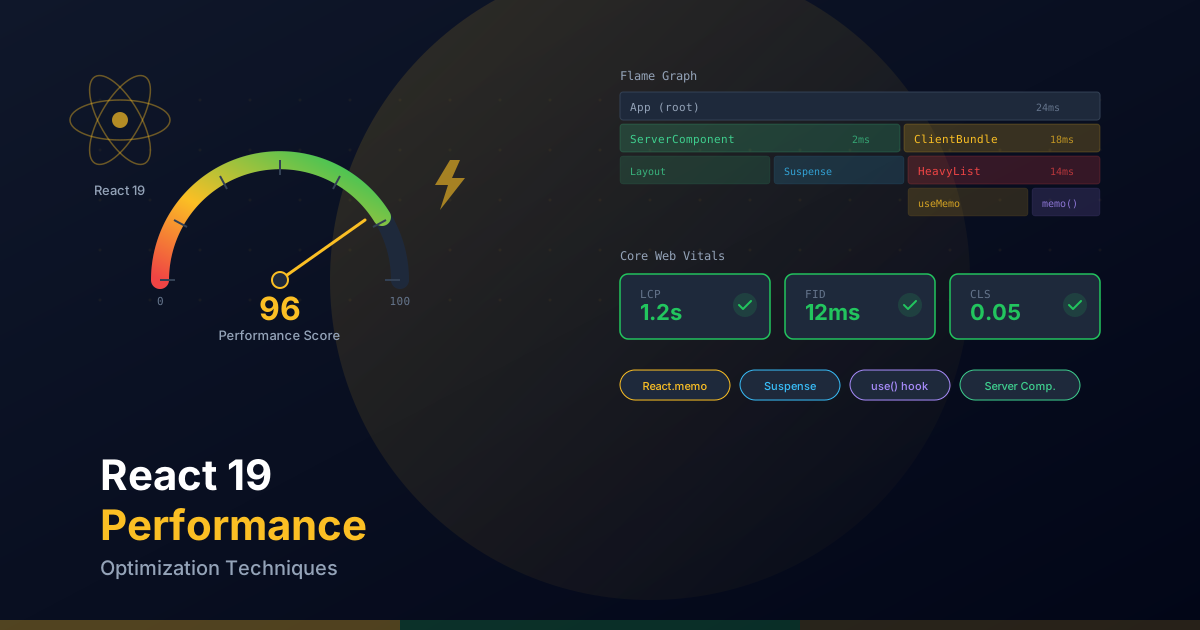
The React DevTools Profiler is the primary tool for identifying performance bottlenecks. It shows you which components re-render, how long each render takes, and why it happened.
How to Use the Profiler
- Install React DevTools: Chrome or Firefox extension.
- Open the Profiler tab: In the browser DevTools, find the "Profiler" tab under React.
- Record an interaction: Click "Record", interact with your app, and stop the recording.
- Analyze the flamegraph: Components that take longer appear wider. Colors indicate render duration.
Programmatic Profiler
// Use the Profiler component to measure renders in production
import { Profiler, ProfilerOnRenderCallback } from "react";

const onRender: ProfilerOnRenderCallback = (
  id,
  phase,
  actualDuration,
  baseDuration,
  startTime,
  commitTime
) => {
  // Send metrics to your analytics service
  if (actualDuration > 16) {
    // More than one frame (16ms)
    console.warn(
      `Slow render in "${id}": ${actualDuration.toFixed(2)}ms (phase: ${phase})`
    );
  }
};

export function MonitoredDashboard() {
  return (
    <Profiler id="Dashboard" onRender={onRender}>
      <Dashboard />
    </Profiler>
  );
}
Web Vitals: Measuring and Improving
The Core Web Vitals are the metrics Google uses to evaluate your site's user experience. They directly affect SEO and the user's perception of performance.
Key Metrics
- LCP (Largest Contentful Paint): Time until the main content is visible. Target: < 2.5 seconds. Improve with
priorityon hero images, font preloading, and Server Components. - INP (Interaction to Next Paint): Response time to user interactions (replaces FID). Target: < 200ms. Improve with
useTransition, code splitting, and reducing client-side JavaScript. - CLS (Cumulative Layout Shift): Visual stability of the layout. Target: < 0.1. Improve with explicit dimensions on images, font fallbacks, and fixed-size skeletons.
Measuring Web Vitals in Next.js
// app/components/WebVitals.tsx
"use client";

import { useReportWebVitals } from "next/web-vitals";

export function WebVitals() {
  useReportWebVitals((metric) => {
    // Send to Google Analytics
    window.gtag?.("event", metric.name, {
      value: Math.round(
        metric.name === "CLS" ? metric.value * 1000 : metric.value
      ),
      event_label: metric.id,
      non_interaction: true,
    });

    // Log in development
    if (process.env.NODE_ENV === "development") {
      console.log(`${metric.name}: ${metric.value.toFixed(2)}`);
    }
  });

  return null;
}
Improving LCP
// Preload critical fonts in the layout
// app/[locale]/layout.tsx
import { Inter } from "next/font/google";

const inter = Inter({
  subsets: ["latin"],
  display: "swap", // Show text immediately with fallback font
  preload: true,
});

export default function RootLayout({
  children,
}: {
  children: React.ReactNode;
}) {
  return (
    <html className={inter.className}>
      <head>
        {/* Preconnect to image CDN */}
        <link rel="preconnect" href="https://images.example.com" />
      </head>
      <body>{children}</body>
    </html>
  );
}
Improving CLS
// Always specify dimensions on images
<Image
  src="/hero.jpg"
  alt="Hero"
  width={1200}
  height={630}
  priority
/>

// Use aspect-ratio on containers for dynamic content
<div className="aspect-video w-full overflow-hidden rounded-lg">
  <video src="/demo.mp4" className="h-full w-full object-cover" />
</div>

// Skeletons with fixed dimensions to prevent layout shift
function CardSkeleton() {
  return (
    <div className="h-[280px] w-full animate-pulse rounded-xl bg-gray-100">
      <div className="h-40 rounded-t-xl bg-gray-200" />
      <div className="space-y-2 p-4">
        <div className="h-4 w-3/4 rounded bg-gray-200" />
        <div className="h-4 w-1/2 rounded bg-gray-200" />
      </div>
    </div>
  );
}
Performance Checklist
- React Compiler enabled: Eliminates unnecessary manual memoization.
- Server Components by default: Only use
"use client"when you need interactivity. - Suspense on independent sections: Streaming SSR for progressive loading.
- Dynamic imports for heavy components: Smart code splitting.
- useTransition on expensive updates: Responsive UI during long processes.
- Virtualization on long lists: More than 100 elements = virtualize.
- Optimized images: next/image with sizes, priority, and placeholder.
- Bundle analyzed: No unnecessary large dependencies.
- Web Vitals monitored: LCP < 2.5s, INP < 200ms, CLS < 0.1.
- Optimized fonts: next/font with display swap and preload.
Final tip: Performance is not something you optimize once and forget about. It is a continuous process of measuring, analyzing, and improving. Set up alerts on your Web Vitals metrics, analyze your bundle with every release, and use the React DevTools Profiler when you notice regressions. With React 19 and the Next.js 15 tooling, you have everything you need to build exceptionally fast applications.