Why Docker for Next.js
Docker solves the classic "it works on my machine" problem by packaging your Next.js application along with its entire runtime environment into a portable container. Whether you are running your app on a developer's laptop, a CI/CD pipeline, or a production server, the behavior is identical because the container includes every dependency, configuration, and system library your application needs.
While platforms like Vercel provide zero-config deployments for Next.js, Docker gives you full control over your infrastructure. This is essential when you need to:
- Self-host on your own infrastructure: Deploy to AWS, Google Cloud, DigitalOcean, or on-premises servers
- Ensure reproducibility: Guarantee the same build artifact runs in every environment
- Orchestrate multiple services: Run your Next.js app alongside databases, caches, and background workers
- Meet compliance requirements: Maintain control over where your data is stored and processed
- Integrate with existing CI/CD: Fit into Docker-based pipelines with tools like GitHub Actions, GitLab CI, or Jenkins
- Scale horizontally: Deploy multiple container replicas behind a load balancer using Kubernetes or Docker Swarm
Dockerfile Basics
A Dockerfile is a text file with instructions that Docker uses to build an image. Each instruction creates a layer in the image, and Docker caches these layers to speed up subsequent builds. Understanding the key instructions is essential for creating efficient Next.js containers.
# Simple single-stage Dockerfile for Next.js
FROM node:20-alpine

WORKDIR /app

# Copy package files first for better layer caching
COPY package.json package-lock.json ./

# Install dependencies
RUN npm ci

# Copy the rest of the application code
COPY . .

# Build the Next.js application
RUN npm run build

# Expose the port Next.js listens on
EXPOSE 3000

# Set the default command
CMD ["npm", "start"]
Key Dockerfile instructions explained:
- FROM: Sets the base image —
node:20-alpineis a minimal Node.js image based on Alpine Linux - WORKDIR: Sets the working directory inside the container — all subsequent commands run from this path
- COPY: Copies files from the host into the container image
- RUN: Executes a command during the build process — used for installing dependencies and building
- EXPOSE: Documents which port the container listens on (does not actually publish the port)
- CMD: Specifies the default command to run when the container starts
Important: Always copy
package.jsonandpackage-lock.jsonbefore copying the rest of the source code. Docker caches each layer, and since dependencies change less frequently than source code, this pattern avoids reinstalling all dependencies on every build.
Multi-Stage Builds for Optimized Images
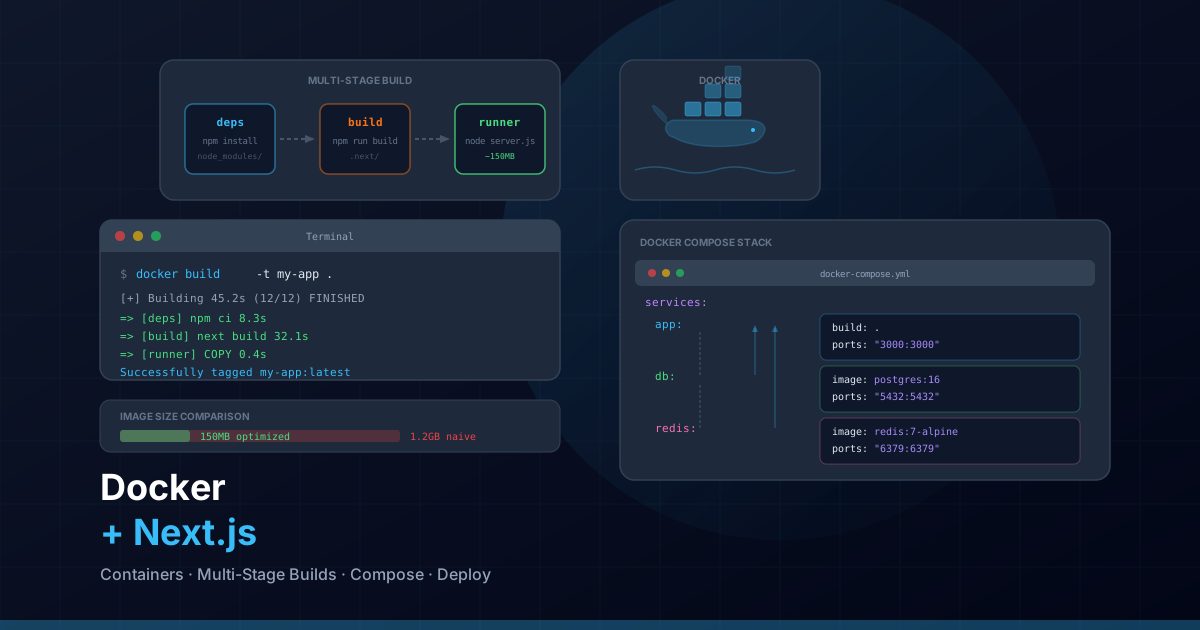
A single-stage Dockerfile includes all build tools, dev dependencies, and source code in the final image. Multi-stage builds solve this by using separate stages for installing dependencies, building, and running. The final image only contains what is needed at runtime, dramatically reducing its size.
# Stage 1: Install dependencies
FROM node:20-alpine AS deps
RUN apk add --no-cache libc6-compat
WORKDIR /app

COPY package.json package-lock.json ./
RUN npm ci --only=production &&     cp -R node_modules /prod_node_modules &&     npm ci

# Stage 2: Build the application
FROM node:20-alpine AS builder
WORKDIR /app

COPY --from=deps /app/node_modules ./node_modules
COPY . .

# Disable Next.js telemetry during build
ENV NEXT_TELEMETRY_DISABLED=1

RUN npm run build

# Stage 3: Production runner
FROM node:20-alpine AS runner
WORKDIR /app

ENV NODE_ENV=production
ENV NEXT_TELEMETRY_DISABLED=1

# Create a non-root user for security
RUN addgroup --system --gid 1001 nodejs &&     adduser --system --uid 1001 nextjs

# Copy only the necessary files from the build stage
COPY --from=builder /app/public ./public
COPY --from=builder /app/.next/standalone ./
COPY --from=builder /app/.next/static ./.next/static

# Set correct ownership
RUN chown -R nextjs:nodejs /app

# Switch to non-root user
USER nextjs

EXPOSE 3000

ENV PORT=3000
ENV HOSTNAME="0.0.0.0"

CMD ["node", "server.js"]
This three-stage approach produces a final image that is typically 80-90% smaller than a single-stage build. The production image contains only the Node.js runtime, your compiled application, and production dependencies.
Stage Breakdown
- deps stage: Installs both production and development dependencies. Copies production-only dependencies separately for use in the final stage
- builder stage: Copies source code and all dependencies, then runs the Next.js build process to produce the optimized output
- runner stage: Starts from a clean Alpine image, copies only the standalone output, static files, and public assets. Runs as a non-root user for security
Standalone Output Mode
Next.js standalone output mode is the key to creating minimal Docker images. When enabled,
Next.js traces all imported modules and creates a self-contained output that includes only
the files needed to run the application — no node_modules directory required.
// next.config.ts
import type { NextConfig } from "next";

const nextConfig: NextConfig = {
  output: "standalone",
  // Optional: reduce image size further by disabling image optimization
  // if you handle it externally (e.g., via a CDN)
  images: {
    remotePatterns: [
      {
        protocol: "https",
        hostname: "images.example.com",
      },
    ],
  },
};

export default nextConfig;
With standalone output enabled, the build produces a .next/standalone directory
containing a minimal server.js file and only the Node.js modules your application
actually imports. This typically reduces the deployment size from several hundred megabytes to
under 50MB.
Note: The standalone output does not include the
public/folder or the.next/staticdirectory. You must copy these manually in your Dockerfile, as shown in the multi-stage build example above.
The .dockerignore File
A .dockerignore file tells Docker which files to exclude when copying the
build context into the container. This speeds up builds and prevents sensitive or unnecessary
files from ending up in your image.
# .dockerignore
node_modules
.next
.git
.gitignore
*.md
LICENSE
.env
.env.*
.vscode
.idea
.DS_Store
Thumbs.db
docker-compose*.yml
Dockerfile*
.dockerignore
npm-debug.log*
yarn-debug.log*
yarn-error.log*
coverage
.nyc_output
__tests__
*.test.ts
*.test.tsx
*.spec.ts
*.spec.tsx- node_modules: Dependencies are installed inside the container — never copy host
node_modules - .next: The build output is generated inside the container during
RUN npm run build - .git: Git history is unnecessary in the container and can be very large
- .env files: Environment variables should be injected at runtime, never baked into the image
- Test files: Tests do not belong in production images
Docker Compose for Local Development
Docker Compose lets you define and run multi-container setups with a single command. For local development, you can run your Next.js application alongside a PostgreSQL database, Redis cache, and any other services your app depends on.
# docker-compose.yml
version: "3.9"

services:
  app:
    build:
      context: .
      dockerfile: Dockerfile.dev
    ports:
      - "3000:3000"
    volumes:
      - .:/app
      - /app/node_modules
      - /app/.next
    environment:
      - NODE_ENV=development
      - DATABASE_URL=postgresql://postgres:postgres@db:5432/myapp
      - REDIS_URL=redis://redis:6379
      - NEXT_PUBLIC_ENABLE_CONTACT_FORM=true
    depends_on:
      db:
        condition: service_healthy
      redis:
        condition: service_started
    command: npm run dev

  db:
    image: postgres:16-alpine
    ports:
      - "5432:5432"
    environment:
      POSTGRES_USER: postgres
      POSTGRES_PASSWORD: postgres
      POSTGRES_DB: myapp
    volumes:
      - postgres_data:/var/lib/postgresql/data
      - ./scripts/init.sql:/docker-entrypoint-initdb.d/init.sql
    healthcheck:
      test: ["CMD-SHELL", "pg_isready -U postgres"]
      interval: 5s
      timeout: 5s
      retries: 5

  redis:
    image: redis:7-alpine
    ports:
      - "6379:6379"
    volumes:
      - redis_data:/data
    command: redis-server --appendonly yes

volumes:
  postgres_data:
  redis_data:
Development Dockerfile
# Dockerfile.dev — optimized for development with hot reload
FROM node:20-alpine

WORKDIR /app

COPY package.json package-lock.json ./
RUN npm ci

COPY . .

EXPOSE 3000

CMD ["npm", "run", "dev"]
Key features of this Docker Compose setup:
- Volume mounts: The
.:/appmount enables hot reloading — changes on your host are reflected in the container immediately - Anonymous volumes:
/app/node_modulesand/app/.nextare excluded from the host mount so the container uses its own versions - Service dependencies: The
depends_onwithcondition: service_healthyensures the database is ready before the app starts - Health checks: PostgreSQL includes a health check that verifies the database is accepting connections
- Persistent data: Named volumes (
postgres_data,redis_data) persist data between container restarts
# Start all services
docker compose up -d

# View logs
docker compose logs -f app

# Stop all services
docker compose down

# Stop and remove volumes (reset data)
docker compose down -v

# Rebuild after dependency changes
docker compose up -d --build
Environment Variables and Docker Secrets
Environment variables in Docker can be passed at build time or runtime. For Next.js applications, it is critical to understand the difference between build-time and runtime variables.
# Build-time variables (available during npm run build)
ARG NEXT_PUBLIC_API_URL
ARG NEXT_PUBLIC_ENABLE_CONTACT_FORM

# Runtime variables (available when the container is running)
ENV NODE_ENV=production
ENV PORT=3000
Variables prefixed with NEXT_PUBLIC_ are inlined into the client-side JavaScript
during the build step. This means they must be available as build arguments, not just runtime
environment variables.
# Build with public environment variables
docker build   --build-arg NEXT_PUBLIC_API_URL=https://api.example.com   --build-arg NEXT_PUBLIC_ENABLE_CONTACT_FORM=true   -t myapp:latest .

# Run with server-side environment variables
docker run -d   -p 3000:3000   -e MAILJET_API_KEY=your_key   -e MAILJET_API_SECRET=your_secret   -e MAILJET_SENDER_EMAIL=hello@raymartin.es   -e DATABASE_URL=postgresql://user:pass@host:5432/db   myapp:latest
Security: Never use
ENVfor secrets in your Dockerfile. Values set withENVare baked into the image layers and can be extracted. Usedocker run -eor Docker secrets for sensitive values.
Docker Secrets with Compose
# docker-compose.prod.yml
version: "3.9"

services:
  app:
    image: myapp:latest
    ports:
      - "3000:3000"
    secrets:
      - mailjet_api_key
      - mailjet_api_secret
      - db_url
    environment:
      - MAILJET_API_KEY_FILE=/run/secrets/mailjet_api_key
      - MAILJET_API_SECRET_FILE=/run/secrets/mailjet_api_secret
      - DATABASE_URL_FILE=/run/secrets/db_url

secrets:
  mailjet_api_key:
    file: ./secrets/mailjet_api_key.txt
  mailjet_api_secret:
    file: ./secrets/mailjet_api_secret.txt
  db_url:
    file: ./secrets/db_url.txt
Health Checks
Health checks let Docker and container orchestrators know whether your application is running correctly. If a health check fails, the container can be automatically restarted or replaced.
# Add health check to Dockerfile
HEALTHCHECK --interval=30s --timeout=10s --start-period=15s --retries=3   CMD wget --no-verbose --tries=1 --spider http://localhost:3000/api/health || exit 1
Create a simple health check API route in your Next.js application:
// app/api/health/route.ts
import { NextResponse } from "next/server";

export async function GET() {
  try {
    // Optionally check database connectivity
    // await db.query("SELECT 1");

    return NextResponse.json(
      {
        status: "healthy",
        timestamp: new Date().toISOString(),
        uptime: process.uptime(),
        version: process.env.APP_VERSION || "unknown",
      },
      { status: 200 }
    );
  } catch (error) {
    return NextResponse.json(
      {
        status: "unhealthy",
        error: error instanceof Error ? error.message : "Unknown error",
      },
      { status: 503 }
    );
  }
}

export const dynamic = "force-dynamic";- interval: How often to run the health check (30 seconds is a good default)
- timeout: Maximum time to wait for a response before considering the check failed
- start-period: Grace period after container start during which failures are not counted — gives your app time to initialize
- retries: Number of consecutive failures needed before the container is marked unhealthy
Building and Pushing to a Container Registry
A container registry stores your Docker images so they can be pulled by deployment targets. Popular registries include Docker Hub, GitHub Container Registry (GHCR), AWS ECR, and Google Artifact Registry.
# Build the image with a tag
docker build -t ghcr.io/raymartin/myapp:latest .
docker build -t ghcr.io/raymartin/myapp:v1.2.3 .

# Authenticate with GitHub Container Registry
echo $GITHUB_TOKEN | docker login ghcr.io -u USERNAME --password-stdin

# Push the image
docker push ghcr.io/raymartin/myapp:latest
docker push ghcr.io/raymartin/myapp:v1.2.3
Automated Builds with GitHub Actions
# .github/workflows/docker-build.yml
name: Build and Push Docker Image

on:
  push:
    branches: [main]
    tags: ["v*"]

jobs:
  build:
    runs-on: ubuntu-latest
    permissions:
      contents: read
      packages: write

    steps:
      - name: Checkout repository
        uses: actions/checkout@v4

      - name: Set up Docker Buildx
        uses: docker/setup-buildx-action@v3

      - name: Log in to GitHub Container Registry
        uses: docker/login-action@v3
        with:
          registry: ghcr.io
          username: ${{ github.actor }}
          password: ${{ secrets.GITHUB_TOKEN }}

      - name: Extract metadata
        id: meta
        uses: docker/metadata-action@v5
        with:
          images: ghcr.io/${{ github.repository }}
          tags: |
            type=ref,event=branch
            type=semver,pattern={{version}}
            type=sha,prefix=

      - name: Build and push
        uses: docker/build-push-action@v5
        with:
          context: .
          push: true
          tags: ${{ steps.meta.outputs.tags }}
          labels: ${{ steps.meta.outputs.labels }}
          cache-from: type=gha
          cache-to: type=gha,mode=max
          build-args: |
            NEXT_PUBLIC_ENABLE_CONTACT_FORM=true
Deploying to Cloud Platforms
AWS ECS (Elastic Container Service)
{
  "family": "nextjs-app",
  "networkMode": "awsvpc",
  "requiresCompatibilities": ["FARGATE"],
  "cpu": "512",
  "memory": "1024",
  "containerDefinitions": [
    {
      "name": "nextjs",
      "image": "123456789.dkr.ecr.us-east-1.amazonaws.com/myapp:latest",
      "portMappings": [
        {
          "containerPort": 3000,
          "protocol": "tcp"
        }
      ],
      "environment": [
        { "name": "NODE_ENV", "value": "production" },
        { "name": "PORT", "value": "3000" }
      ],
      "secrets": [
        {
          "name": "DATABASE_URL",
          "valueFrom": "arn:aws:secretsmanager:us-east-1:123456789:secret:db-url"
        }
      ],
      "healthCheck": {
        "command": ["CMD-SHELL", "wget -q --spider http://localhost:3000/api/health || exit 1"],
        "interval": 30,
        "timeout": 5,
        "retries": 3,
        "startPeriod": 15
      },
      "logConfiguration": {
        "logDriver": "awslogs",
        "options": {
          "awslogs-group": "/ecs/nextjs-app",
          "awslogs-region": "us-east-1",
          "awslogs-stream-prefix": "ecs"
        }
      }
    }
  ]
}
Google Cloud Run
# Build and push to Google Artifact Registry
gcloud builds submit --tag gcr.io/my-project/myapp:latest

# Deploy to Cloud Run
gcloud run deploy myapp   --image gcr.io/my-project/myapp:latest   --platform managed   --region us-central1   --port 3000   --memory 512Mi   --cpu 1   --min-instances 0   --max-instances 10   --set-env-vars NODE_ENV=production   --set-secrets DATABASE_URL=db-url:latest,MAILJET_API_KEY=mailjet-key:latest   --allow-unauthenticated
DigitalOcean App Platform
# .do/app.yaml
name: nextjs-app
region: nyc

services:
  - name: web
    dockerfile_path: Dockerfile
    github:
      repo: raymartin/myapp
      branch: main
      deploy_on_push: true
    http_port: 3000
    instance_count: 2
    instance_size_slug: professional-xs
    health_check:
      http_path: /api/health
      initial_delay_seconds: 15
      period_seconds: 30
    envs:
      - key: NODE_ENV
        value: production
      - key: DATABASE_URL
        type: SECRET
        value: "${db.DATABASE_URL}"

databases:
  - name: db
    engine: PG
    version: "16"
    size: db-s-1vcpu-1gb
    num_nodes: 1
Production Optimization
Alpine Images for Minimal Size
Alpine-based Node.js images are significantly smaller than the default Debian-based images.
The node:20-alpine image is approximately 50MB compared to 350MB for
node:20.
# Compare image sizes
docker images --format "table {{.Repository}}	{{.Tag}}	{{.Size}}"

# REPOSITORY        TAG              SIZE
# myapp             debian           1.2GB
# myapp             alpine           180MB
# myapp             alpine-standalone 85MB
Layer Caching Strategies
# Optimal layer ordering for cache efficiency
FROM node:20-alpine AS deps
WORKDIR /app

# 1. Copy only package files (changes rarely)
COPY package.json package-lock.json ./
RUN npm ci

# 2. Copy config files (changes occasionally)
COPY next.config.ts tsconfig.json tailwind.config.ts postcss.config.js ./

# 3. Copy source code (changes frequently)
COPY app/ ./app/
COPY components/ ./components/
COPY content/ ./content/
COPY hooks/ ./hooks/
COPY messages/ ./messages/
COPY public/ ./public/
COPY routes/ ./routes/
COPY styles/ ./styles/
COPY utils/ ./utils/
COPY middleware.ts i18n.ts environment.d.ts ./

RUN npm run build
Security Scanning
# Scan image for vulnerabilities with Docker Scout
docker scout cves myapp:latest

# Scan with Trivy (open source)
trivy image myapp:latest

# Scan with Snyk
snyk container test myapp:latest
Production security best practices for Docker containers:
- Run as non-root: Always create and switch to a non-root user in your Dockerfile
- Use specific tags: Pin your base image to a specific version like
node:20.11-alpineinstead ofnode:20-alpine - Scan regularly: Integrate vulnerability scanning into your CI/CD pipeline
- Minimize attack surface: Use multi-stage builds to exclude build tools from the final image
- Update base images: Regularly rebuild with updated base images to pick up security patches
- Read-only filesystem: Mount the root filesystem as read-only when possible using
--read-only - No secrets in images: Never store credentials, API keys, or tokens in the image layers
Pro tip: Combine multi-stage builds with standalone output mode for the smallest possible production image. A well-optimized Next.js Docker image can be under 100MB, which means faster deployments, lower storage costs, and quicker container startup times. Run
docker imagesafter each optimization to measure the impact of your changes.
Docker gives you full ownership of your deployment pipeline. By combining multi-stage builds, standalone output, health checks, and security best practices, you can deploy Next.js applications to any infrastructure with confidence. Whether you choose AWS, Google Cloud, DigitalOcean, or your own servers, the containerized application behaves identically everywhere.